1. Make a 400x400 document. Now press "D" on your keyboard to reset the foreground and background colors to black and white. Make sure your background is BLACK.
2. Now go to Filter>Render>Lens Flare and use these settings:
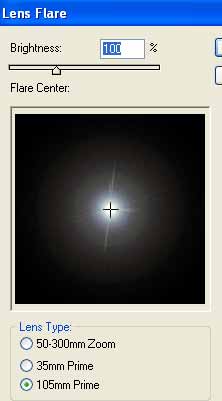
Put the lens flare right in the middle of your canvas.
3. Go to Filter>Liquify and you now want to choose the following settings in the top right of the liquify popup:
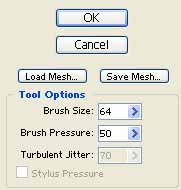
After doing this follow my red lines in this graphic below:
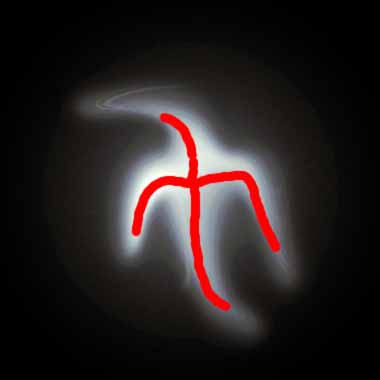
You can be creative and drag about wherever you please.
4. Now you got a graphic similar to mine below:
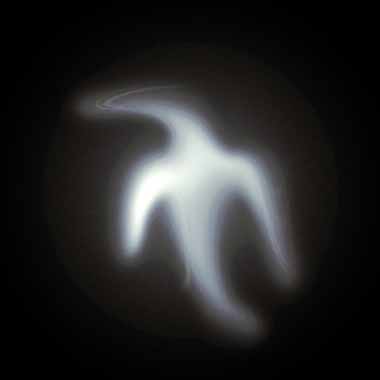
Duplicate the layer and add the duplicated layer blending mode as multiply.
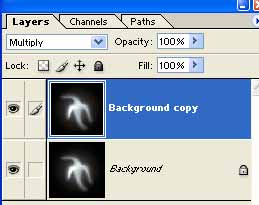
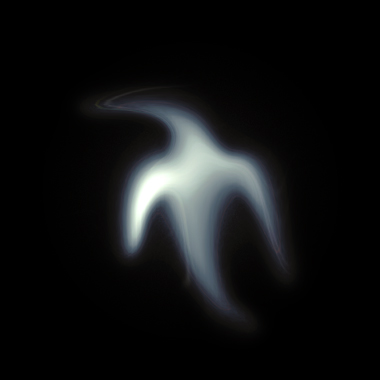
There you go, here is my ghostly figure: