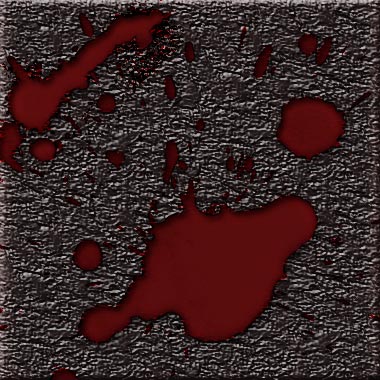
1. Make a 400x400 document. Now press "D" on your keyboard to reset the foreground and background colors to black and white.
2. Download the brushes at www.angryblue.com.
3. Make a new layer and fill it all in with black. Delete the white background layer. Now apply a cool texture effect by right clicking the layer and going to blending options. Use whatever texture you want. I used one like:
4. Make another new layer and select the blood paint brush tool. You want to now make a nice blood splat mark on your canvas. I used #731010 as my color.
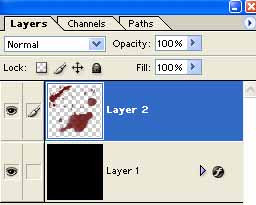
Layers in your window:
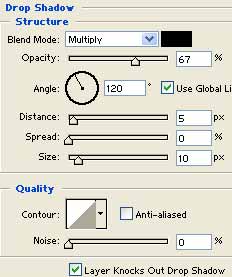
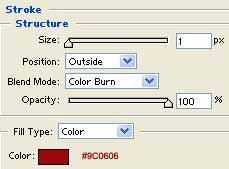
5. Now you want to apply these blending options to the blood splat layer:
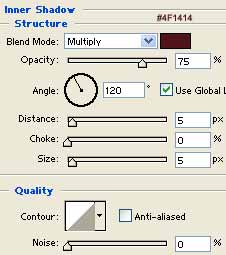
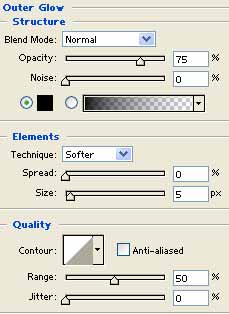
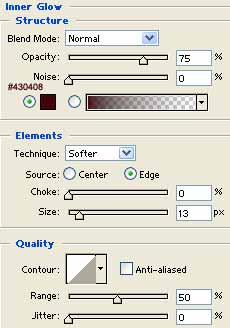
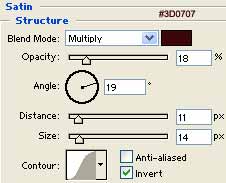
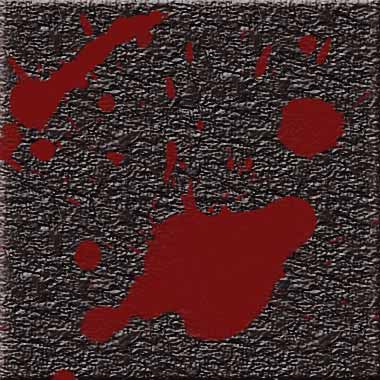
Your final effect should look like mine with just a different texture background of your choice: