1. First of all I have taken a new file of height = 400 pixels, width = 400 pixels and resolution of 72 dpi in the RGB mode.
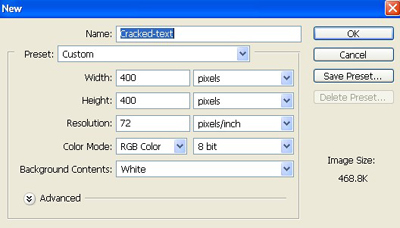
2. Fill the new document with color black.

3. Now type any word you like, make sure the font color is white.

4. Now go to Filter > Blur > Gaussian Blur Apply the following setting.
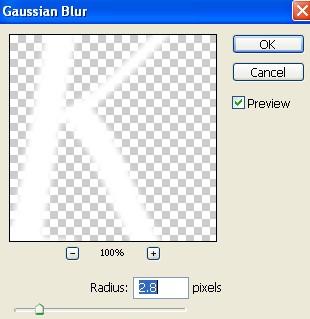
5. Your image will look like this.

6. Press Ctrl+Click on the layer menu, located with the 'layers' window this will get you the outline of the text layer, now using a gradient tool (change the plate to white and black) now with the gradient tool drop and drug its like shown below.

7. Your image will look like this.

8. Click Filter > Render > Lighting Effect and enter these values.
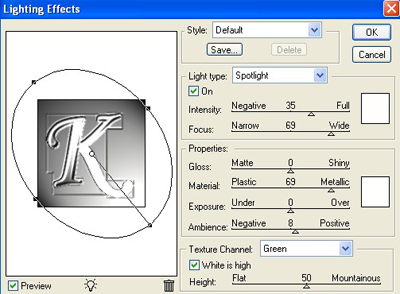
9. Your image will look like this.

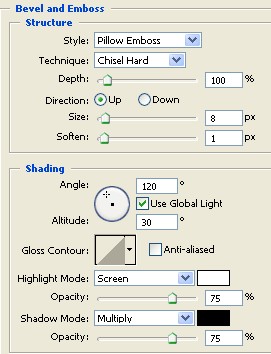
10. Now click Layer > Layer Style > Blending Option, Bevel and Emboss Structure apply the following setting.
11. Now click Layer > Layer Style > Blending Option Texture Elements apply the following setting.
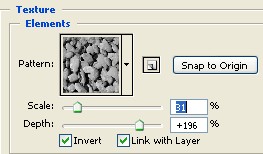
12. Your image will look like this.

13. Lets add some color, click Image Adjustments Hue/Saturation Apply the following setting.
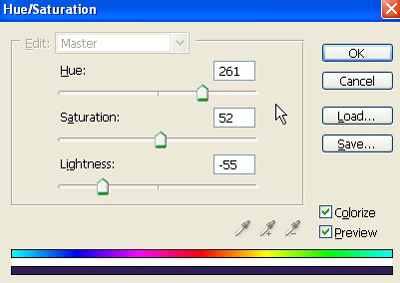
14. Your final image will be as attractive as mine as showing below.