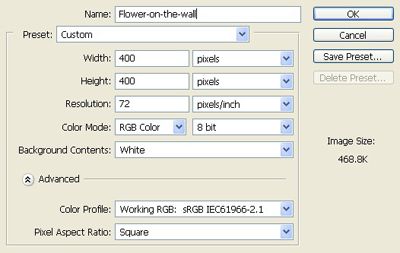
1. Take a new file of 400 pixels 400 pixels of resolution 72 dpi in the RGB mode.
2. Choose the gradient settings which are given below.

3. Fill the gradient as given below in the image.

4. Goto Filter >Pixelate> Mosaic and apply these settings which are given below.
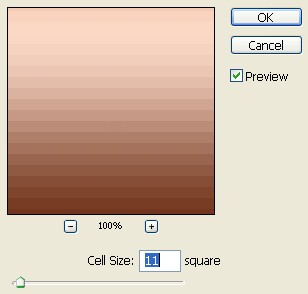
5. Your image will be like this.

6. Make the copy of the layer and transform it at the 90* angle .

7. Make it opacity as in the image given below.
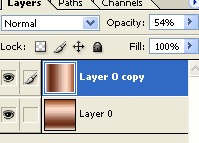
8. Your image will be like this.

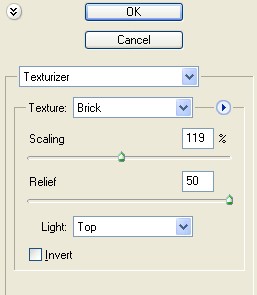
9. Merge the layers and make a copy of the goto filter > Texture > Texturizer and apply these settings
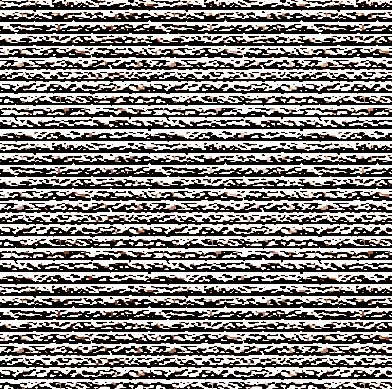
10. Your image like this.
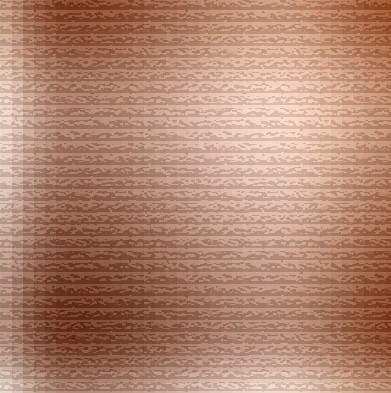
11. Make the opacity decrease and your image will be like this.
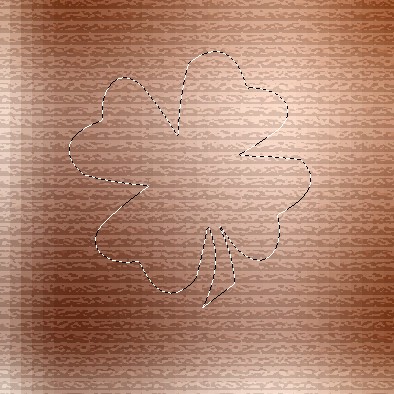
12. Make a selection of a flower shape as in the shape.
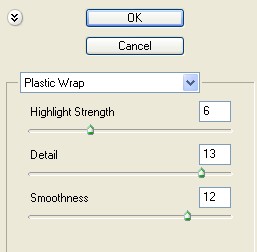
13. Press Ctrl J and apply the Filter plastic wrap of the setting which are given below.
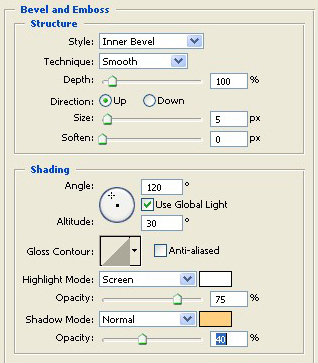
14. Apply the blending options > bevel & emboss and apply the settings whish are given below.
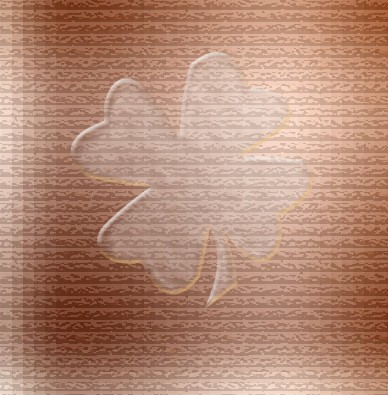
15. Your image will be like this.
16. Apply the Blending mode which are given below.
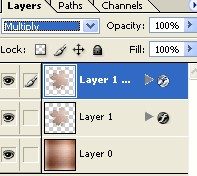
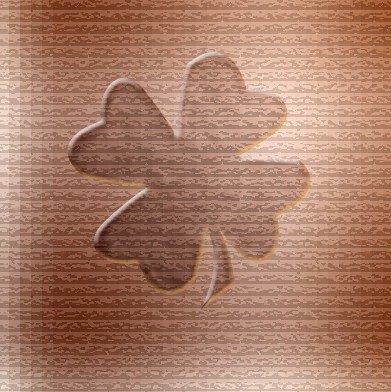
17. Your image will be like this.