1. First of all open a new blank document size 620x220pixel, RGB color mode,96inch/pixel-resolution
2. Now type any words with the help of Text tool

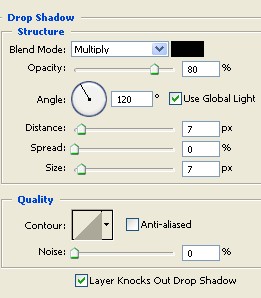
3. Double click on text layer here select the Drop Shadow in the Layer style. Choose the setting below
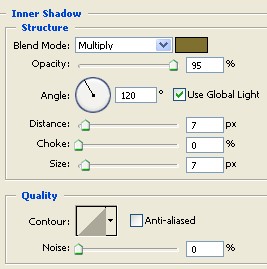
4. Select the Inner Shadow Choose the setting below ,color #807030
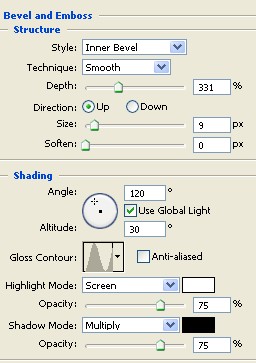
5. Select the Bevel and Emboss Choose the setting below
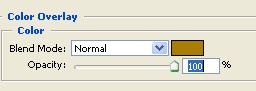
6. Now select the Color Overlay ,color code#A97E00
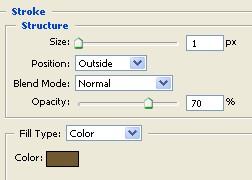
7. Select the Stroke ,look below and choose this setting
8.Final Image