1. First, Open a new document any size. Here I have used document size 420x420pixel
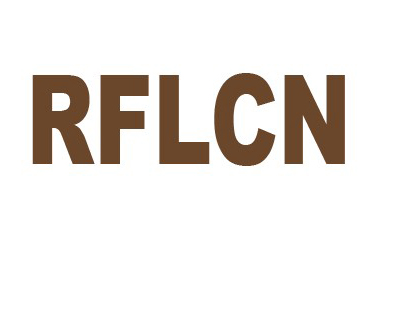
2. Type anything words with the help of Text tool. As shown below
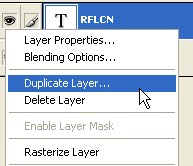
3. Now right click on this layer and then click the Duplicate Layer
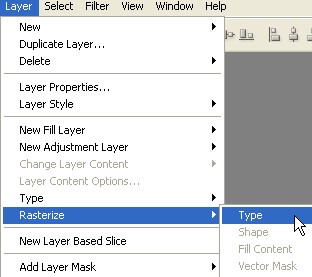
4. Go to > Layer > Rasterize > Type. As shown below
5. Now Press Ctrl+T for Transform selection and Move it with the help of Mouse. As shown below after that press "Enter" key
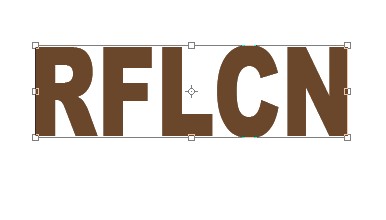
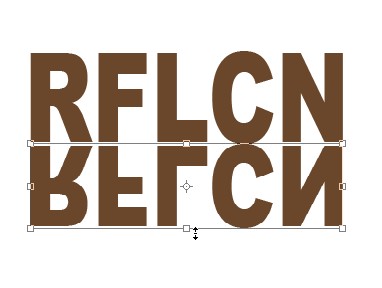
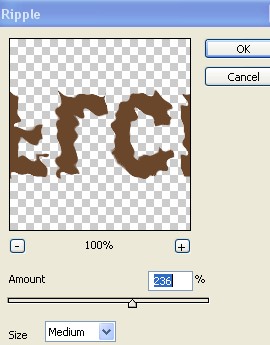
6. Go to Filter > Distort > Ripple and apply the following settings
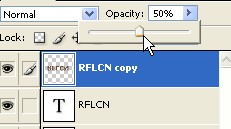
7. Here Reduce Opacity 50% in this layer
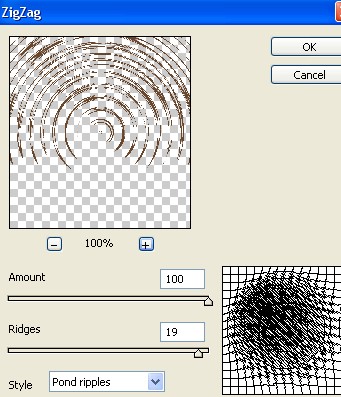
8. Press Ctrl+J and go to Filter > Distort > Zig Zag. Now apply the following setting
9. Now here, decrease the image size with the help of Transform selection.
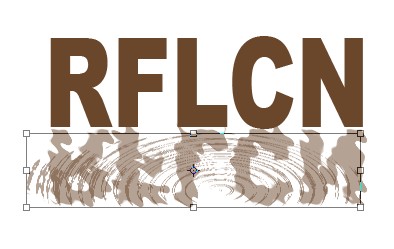
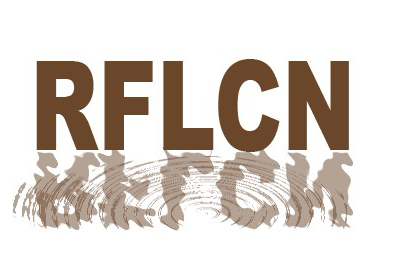
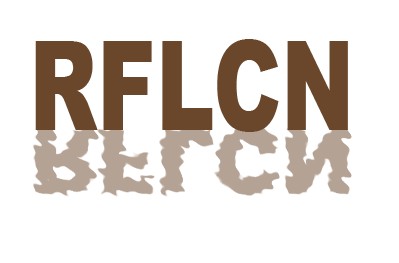
10. Now your Text has been completed