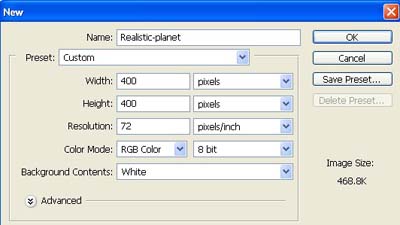
1. Take a new file of 400 pixels,400 pixels, of resolution 72 dpi in the RGB mode.
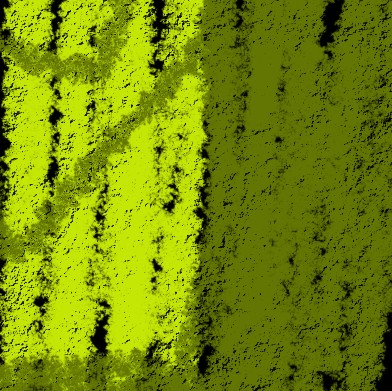
2. Brush the image any color you like I suggest two main color.

3. Now select the Brush see in the next image.
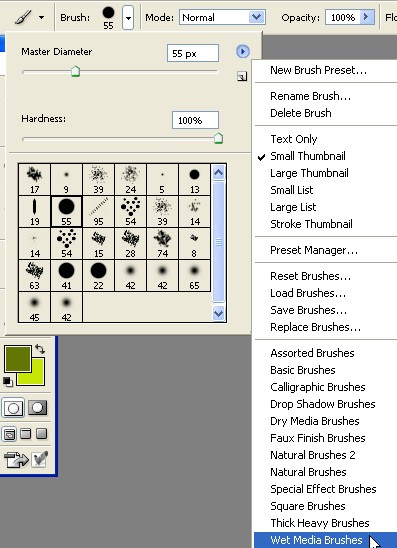
4. Draw a shape with the help of brush.
5. Go to Filter>Distort>Polar Coordinates apply the following settings.
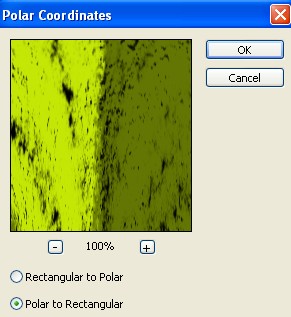
6. Then go again Filter>Distort>Polar Coordinates apply the following settings.
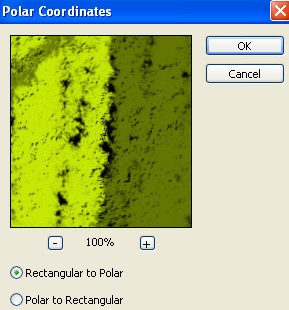
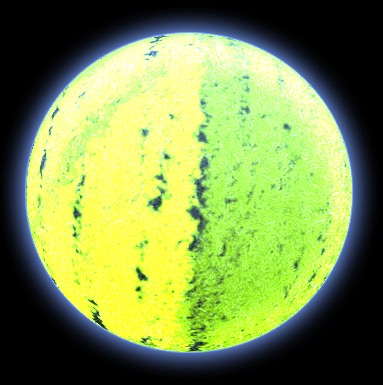
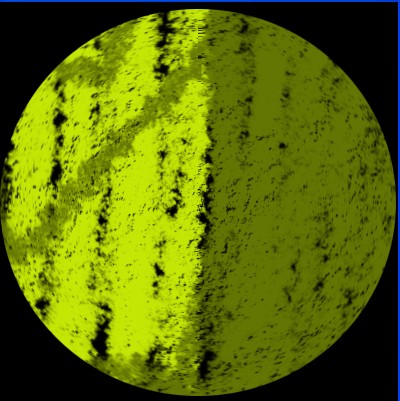
7. Your image will look like this.
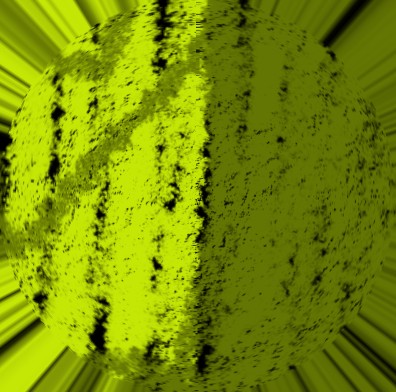
8. Now using elliptical marquee tool, make a selection around the sphere see in the next image.
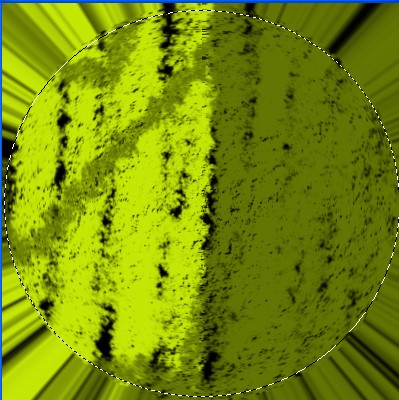
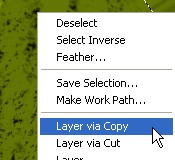
9. Now, right click and select, "layer via copy".
10. Select the bottom layer see in the image.
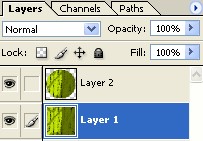
11. Now fill it with black color.
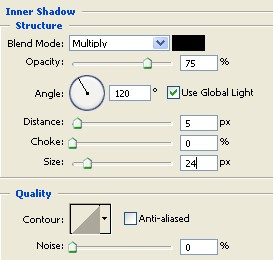
12. Now go to the Blending Option apply the following settings.
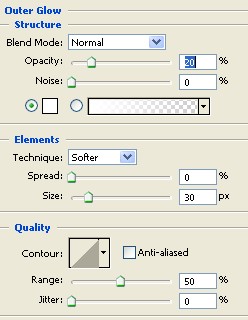
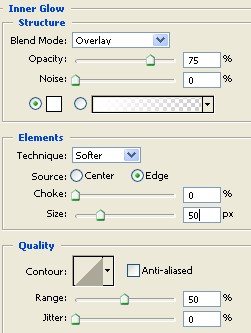
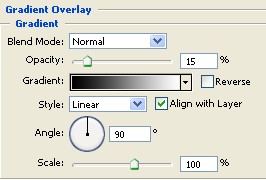
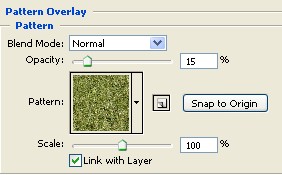
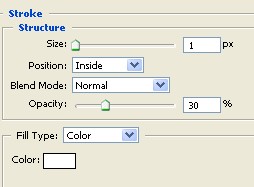
13. Your image will look like this.
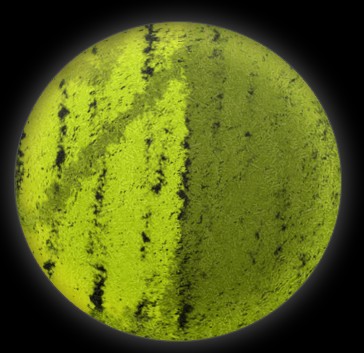
14. Make a new layer from the layer palette.
15. Now fill it with any color you like and change the blending mode color dodge showing in the image.
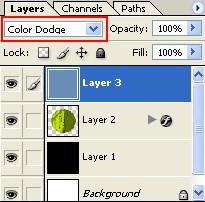
16. Now your image will look like this.