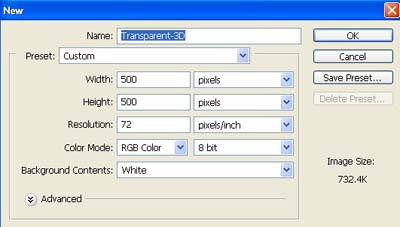
1. First of all I have taken a new file of height = 500 pixels, width = 500 pixels and resolution of 72 dpi in the RGB mode.
2. Fill the new document with color black.

3. Select the Custom Shape Tool from the tool palette.
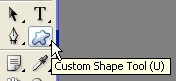
4. Take the shape layer as indicated by the arrow in the next image.

5. Now create a shape like this.

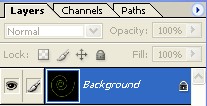
6. Now merge the layers as in the fig.
7. Go to Filter>Blur>Motion Blur> apply the following settings.
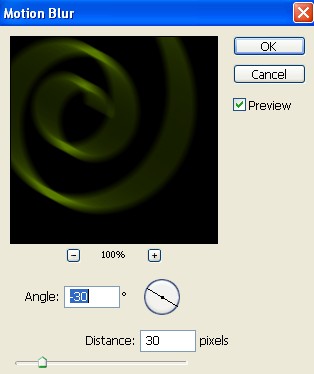
8. Your image will look like this.
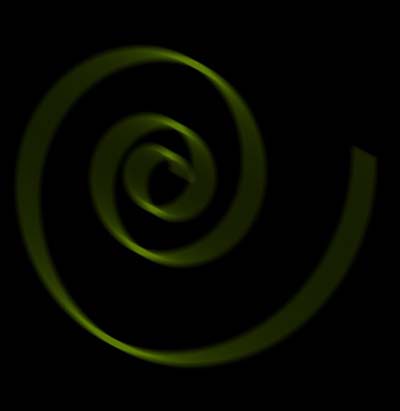
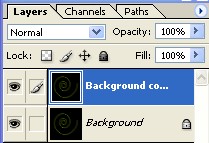
9. Now copy a Background Layer as shown fig below.
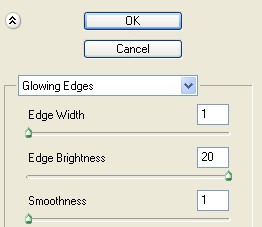
10. Again go to the menu but this time select Filter>Stylize>Glowing Edges and enter the following settings.
11. Now your image will look like this.
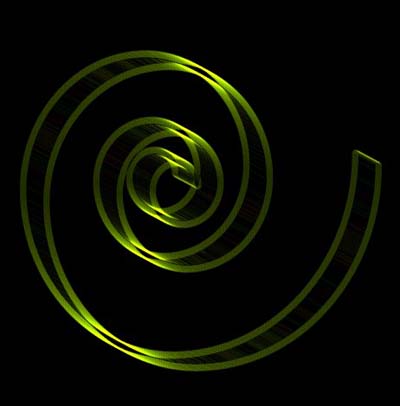
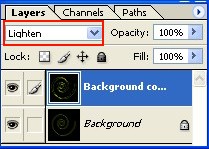
12. The last thing we have to do now is changing the blending mode of Background copy Layer to Lighten as shown below.
13. Here is you final image