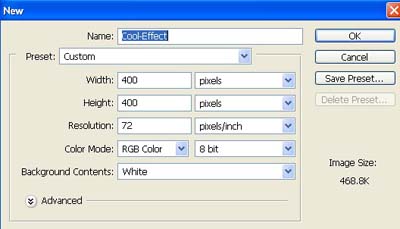
1. Take a new file of 400 pixels, 400 pixels, of resolution 72 dpi in the RGB mode.
2. Fill the new document with black color.

3. Now select the custom shape.
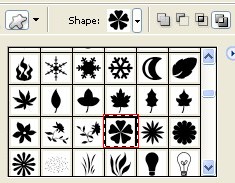
4. Make the new layer from the layer palette now make a selection and fill with color white.

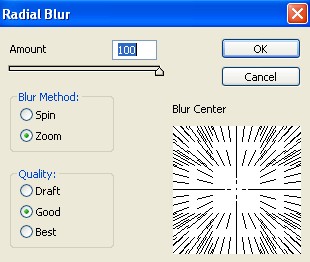
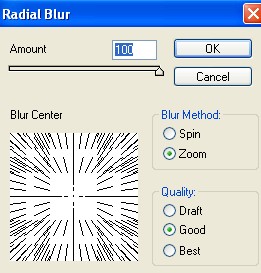
5. Then go to Filter>Blur>Radial Blur apply these settings.
6. Your image should be look like this.
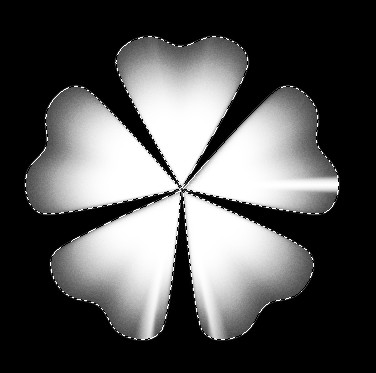
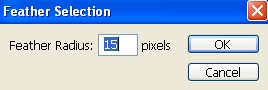
7. Now hold down ctrl and click the layer to load the selection . Go to Select>Feather and father selection see in the next image.
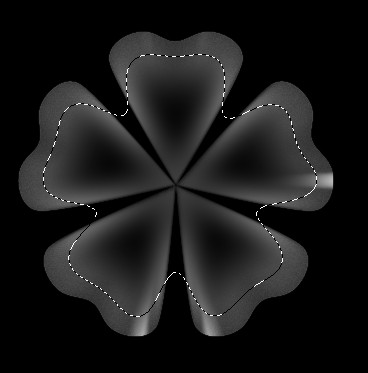
8. Hit delete to delete the inside part of the selection your image should be look like this.
9. Go to Image>Adjustments>Hue/Saturation apply these settings.
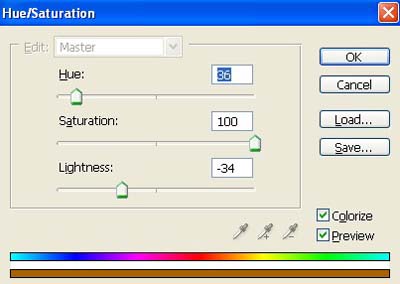
10. Your image should be look like this.
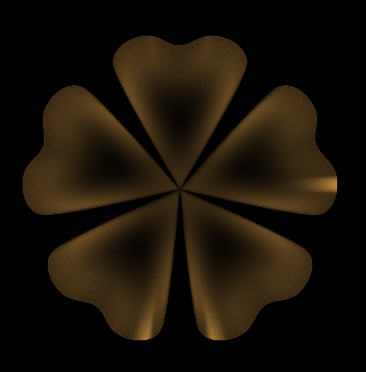
11. Make the copy of layer 1.
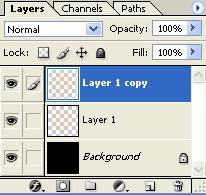
12. Then right click the top one and merge it down with the other so it get brighter.
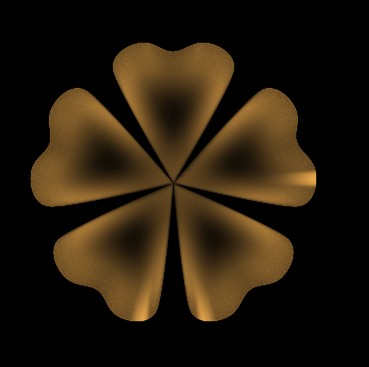
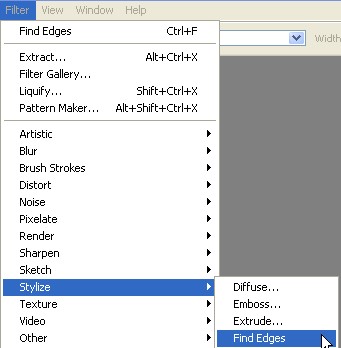
13. Then go to Filter>Stylize>Find Edges.
14. Your image look like this.
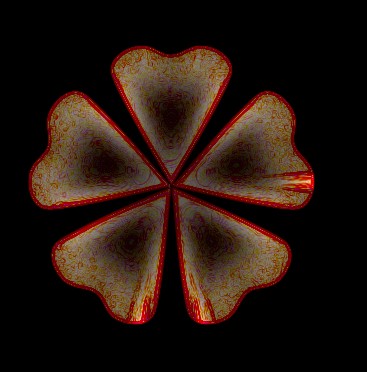
15. Make the copy of layer1.
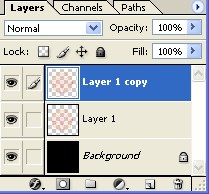
16. Then right click the top one and merge it down.
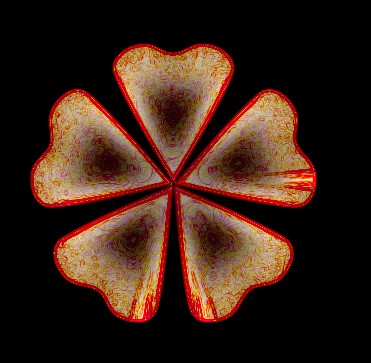
17. And then again make the copy of layer1.
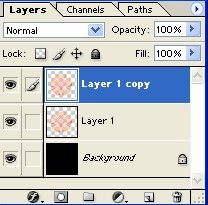
18. Then go to Filter>Blur>Radial Blur apply these settings.
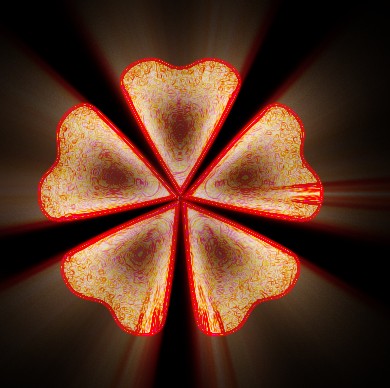
19. Your image should be look like this.
20. Go to Image>Adjustments>Hue/Saturation apply these settings.
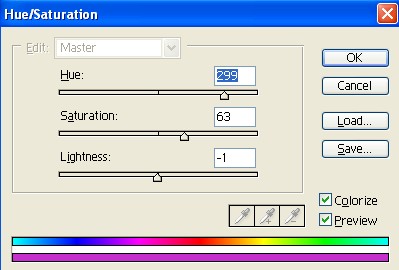
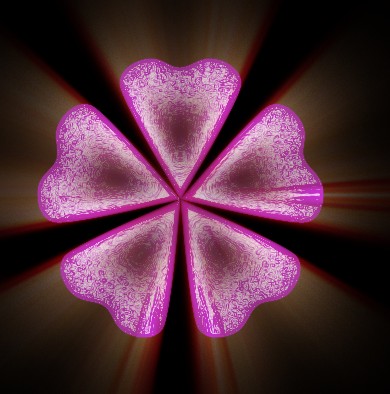
21. Your final cool effect image look like this.