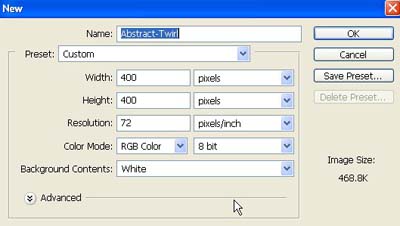
1. Take a new file of 400 pixels 400 pixels of resolution 72 dpi in the RGB mode.
2. Now fill the new document with color black.

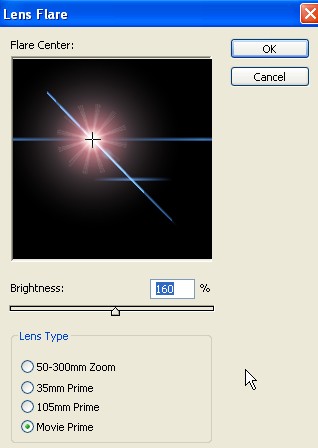
3. Go to Filter>Render>Lens Flare use these settings.
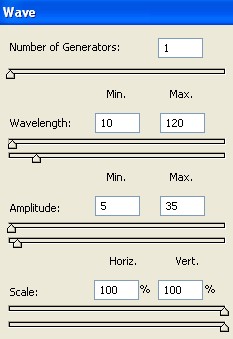
4. Then go to Filter>Distort>Wave apply the following settings.
5. Your image should be look like this.
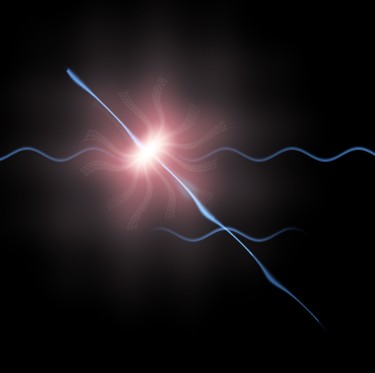
6. Now double click the background layer then click ok make the copy of of layer 0.
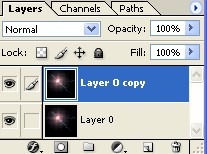
7. Then go to Filter>Blur>Gaussian Blur use these settings.
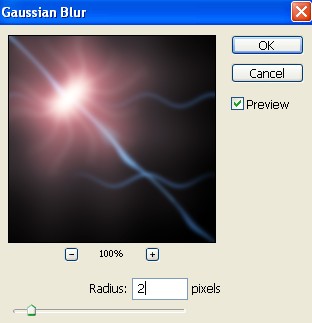
8. Your image should be look like this.
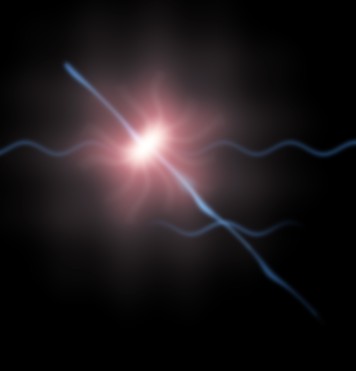
9. And now change the Blending Mode Overlay.
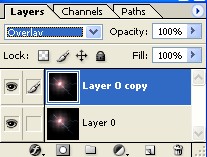
10. Then press Ctrl+E to merge down the layer.
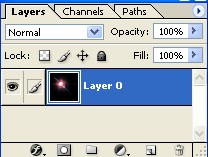
11. Now make the copy of layer0.
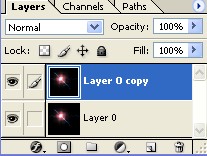
12. Now select the layer 0.
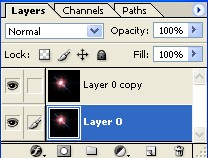
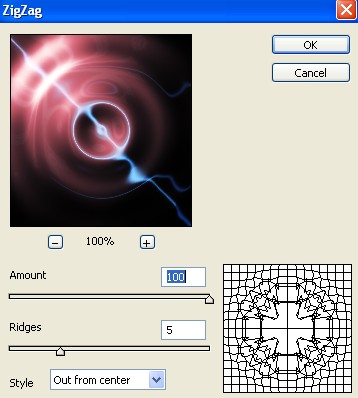
13. Go to Filter>Distort>ZigZag use these settings.
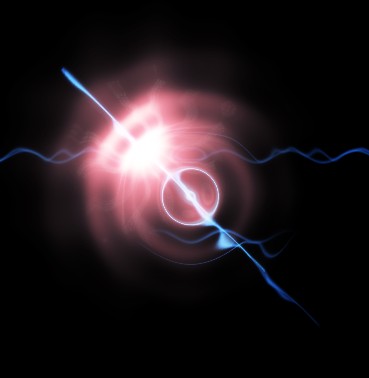
14. Your image should be look like this.
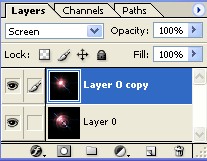
15. Then select the layer0 copy.
16. Then go to Filter>Distort>Twirl use these settings.
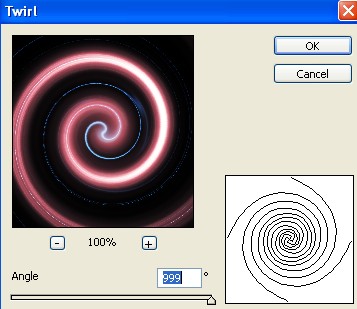
17. Your image should be look like this.
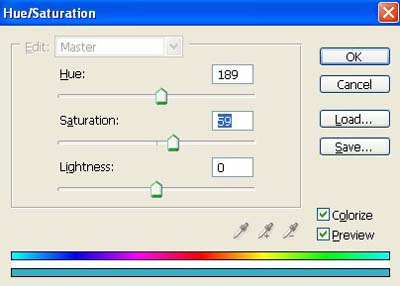
18. Then press Ctrl+U add some color use the following settings.
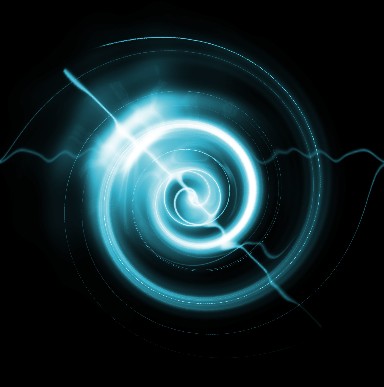
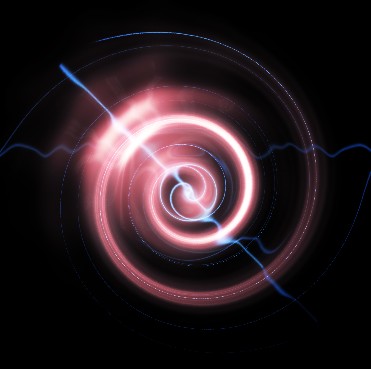
19. Your final image should be look like this.