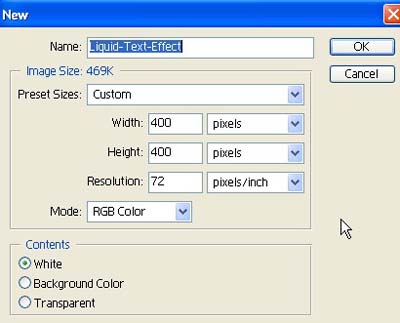
1. Take a new file of 400 pixels, 400 pixels, of resolution 72 dpi in the RGB mode.
2. Select the Text tool from the tool palette
 .
.
3. Create a black text on a white background like in the picture.

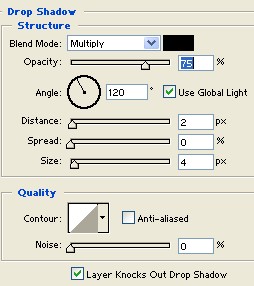
4. Go to the Blending Option click on the Drop Shadow Structure apply the following settings.
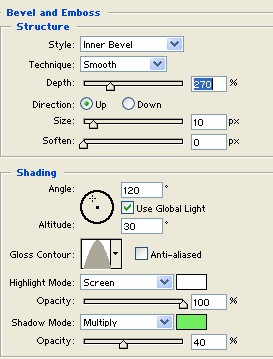
5. Go to the Blending Option click on the Bevel and Emboss Structure apply the following settings.
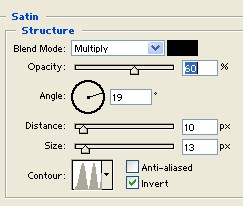
6. Go to the Blending Option click on the Satin Structure apply the following settings.
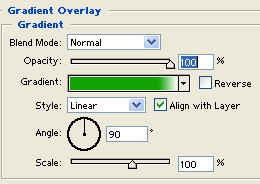
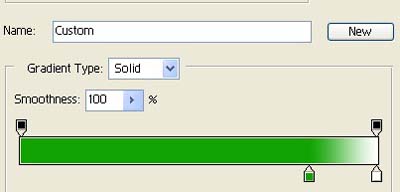
7. Go to the Blending Option click on the Gradient Overlay Gradient apply the following settings.
8. Your final image should be look like this.

9. Here is a one more example.