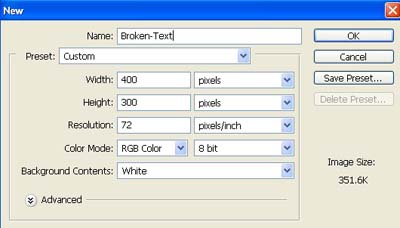
1. Take a new file of 400 pixels 300 pixels of resolution 72 dpi in the RGB mode.
2. Use the Type tool to create your text.

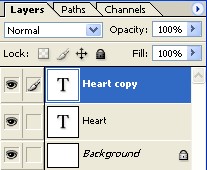
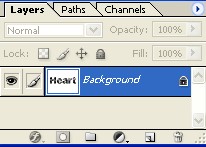
3. Make the copy of layer1 as shown in the fig. below.
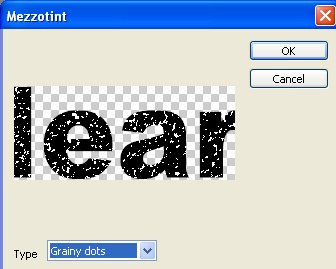
4. Go to Filter>Pixelate>Mezzotint and apply these settings.
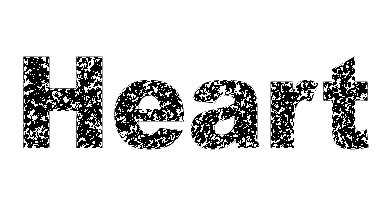
5. Your image will look like this.

6. Press Ctrl+F two more time.
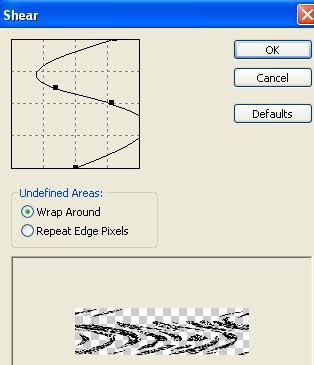
7. Go to Filter>Distort>Shear apply the following settings.
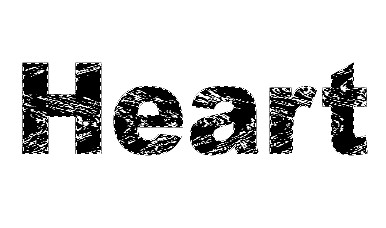
8. Now your image will look like this.
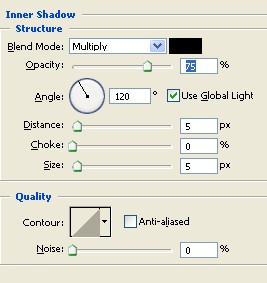
9. Go to Blending Option apply these settings.
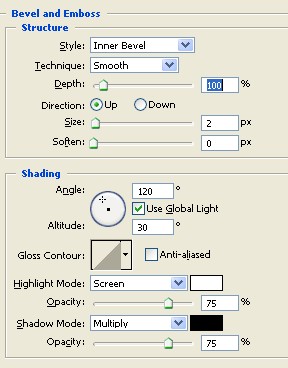
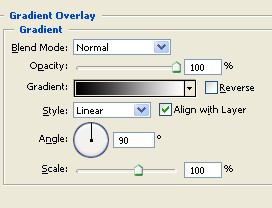
9. Your image will look like this.

10. Come back to the first layer and apply the following settings.
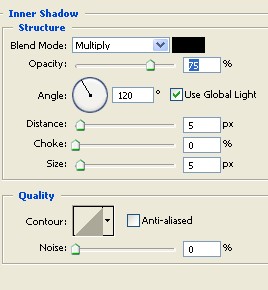
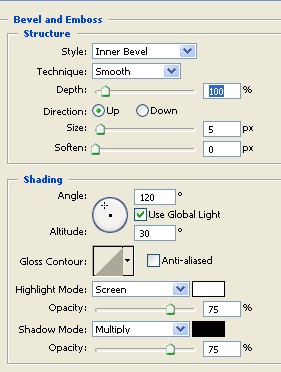
11. And merge the all layer as shown in the fig. below.
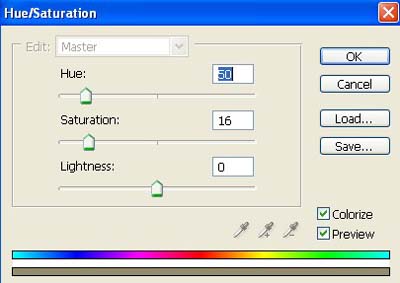
12. And now press the Ctrl+U apply the following settings.
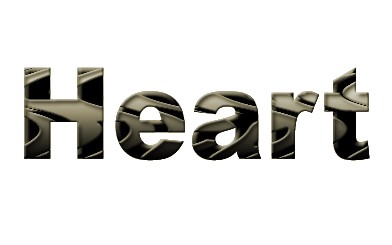
13. Your final broken text should be look like this.