

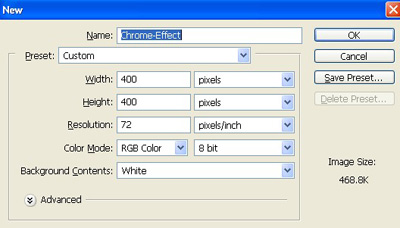
1. Take a new file of 400 pixels 400 pixels of resolution 72 dpi in the RGB mode.
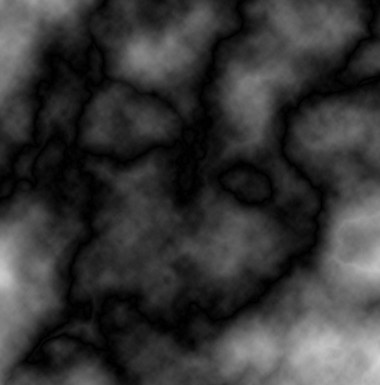
2. Now go to Filter>Render>Difference clouds.
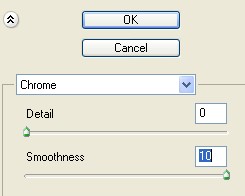
3. Then go to Filter>Stylize>Chrome use these settings.
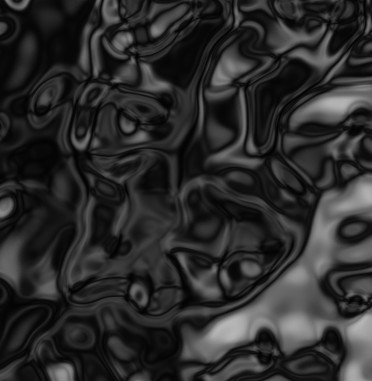
4. Your image look like this.
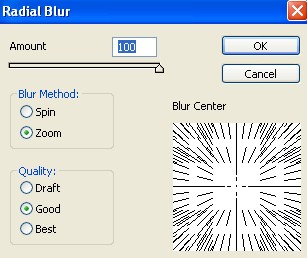
5. Then go to Filter>Blur>Radial Blur apply these settings.
6. Your image look like this.
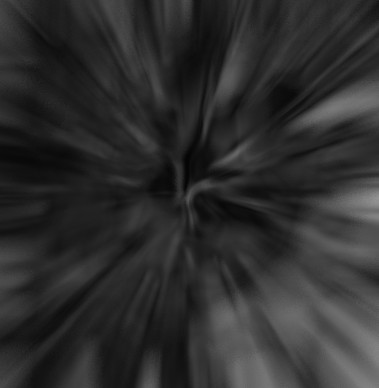
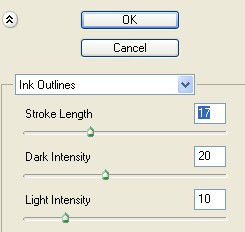
7. Then go to Filter>Brush Stroke>Ink Outlines use these settings.
8. Your image looks something like this.
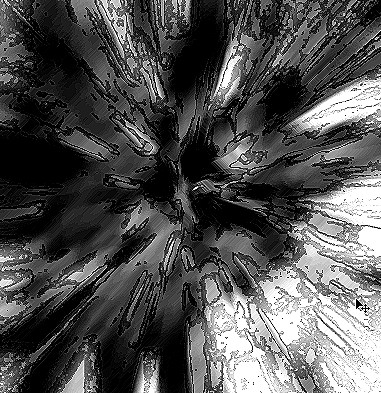
9. And now go to Filter>Gaussian Blur use these settings.
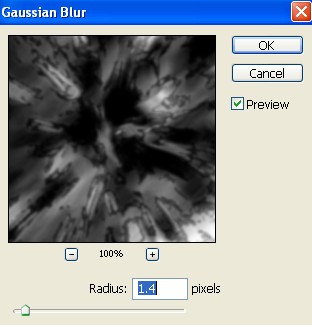
10. Your image should be look like this.
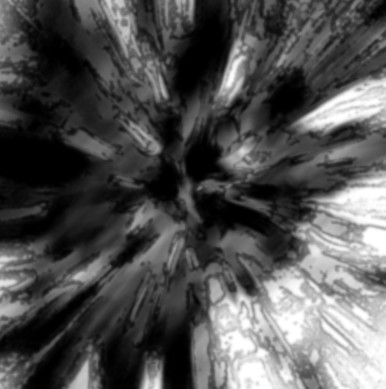
11. Then press Ctrl+B to Color Balance use these settings.
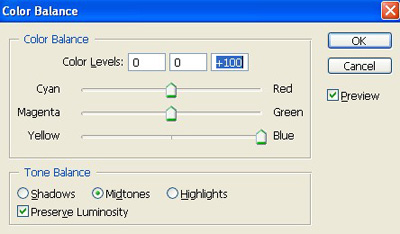
12. Your image should be look like this.
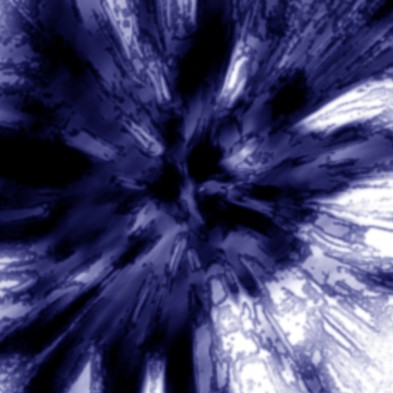
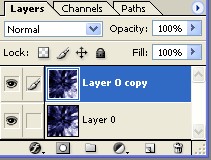
13. Then make the copy of layer0.
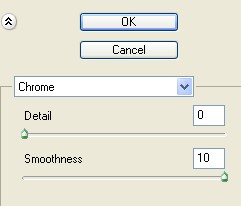
14. Then go to Filter>Stylize>Chrome use these settings.
15. Then press Ctrl+E to Merge down the layer.
16. And now press Ctrl+U to add some color.
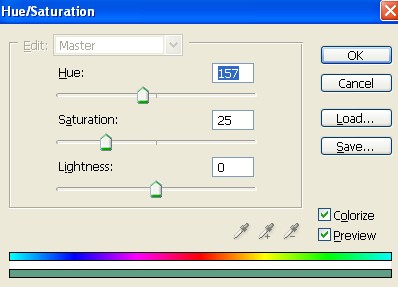
17. Here is your final image.

