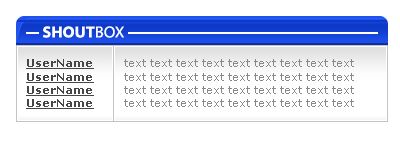
1. Open a new photoshop document with the following values:
width - 400px , height - 145px
2. Pick the rounded rectangle tool (ctrl+U) with 8px radios and draw like the image below (fill color: #2051EF):

Choose the rectangular marquee tool (M) and erase the bottom rounded part of the object. the result should be like this:

3. Go to: layer - duplicate layer , and create clipping mask by pressing ctrl+alt+g (works fine in CS2 , didn't check it in other versions).
Then go to: edit-tranform-perspective and change the values to the following:

and press on the V button to confirm the changes.
4. Add gradient overlay with the following settings:
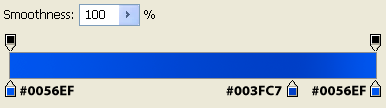
Also, add a stroke of 1px (outside), color- #2051EF , mode: screen and 25% opacity.
5. Add a new layer that will be also in the clipping mask.
Choose again the rectangular marquee tool (M) and make a selection of 2px height like to image below:

Fill it with this color: #0D39C8.
6. Add a new layer that won't be in the above clipping mask.
Make a selection of 2px height exactly like step 5 and fill it with darker color that the above color- #0F309C.
The result should be something like this:

And we are done with this part of the tutorial, now we will learn how to make the main content area.
7. Make a selection of the same width of the above object and a bigger height like the image below:
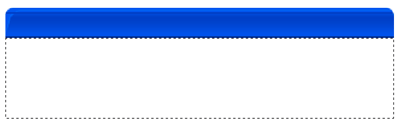
Fill it with any color you want and make the layer's fill value to 0%.
Add a stroke effect to this layer with the following values:
size-1px, position-inside, color-#C4C4C4.
Place the above layer in the top of the layer list.
Choose the pencil tool(B) and draw a line of 1px width all over the above selection. the result should be like this:
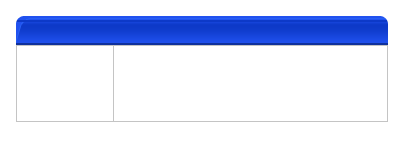
8. Add a new layer and make a selection like below and make sure you keep 1px separation area:
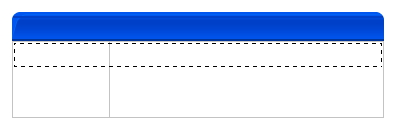
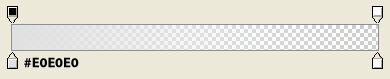
Choose the gradient tool (G) and change the values to the following ones:
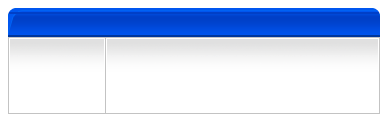
And draw the gradient line when you see the selection. Erase 3 px width. the result should be like the image below:
9. Do the same process like step 8 in the bottom of the box.
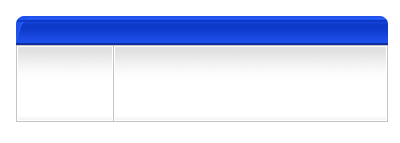
10. The final step is to add a content to this box that we have just created. here is my final result: