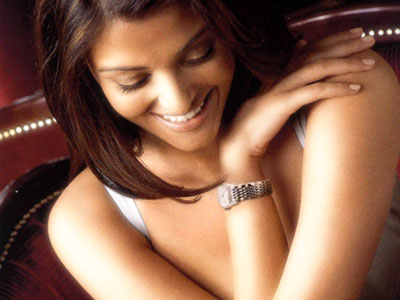
Open you image :
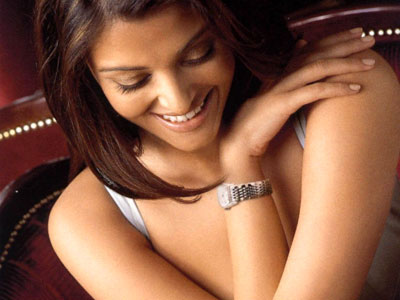
Now, go to channels palette. Right click on Blue Channel and select duplicate channel. Press control+m to open curves and adjust the curve to get these settings :
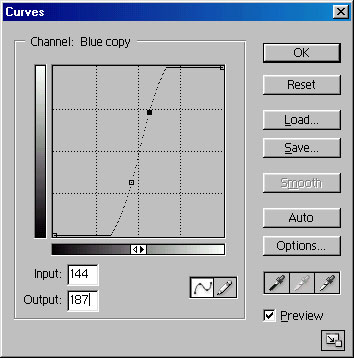
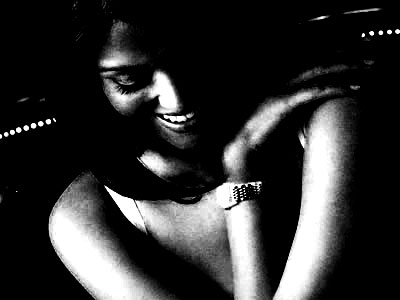
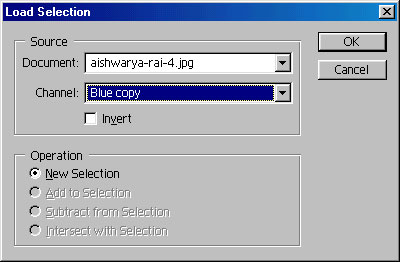
Now, return to layer palette. Go to select>load selection and in the channel, select Blue Copy as channel :
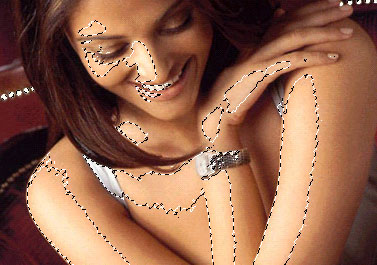
You will have the selection like shown :
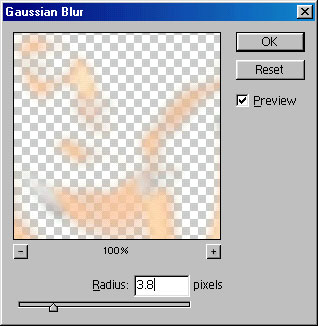
Press control+j to duplicate the selection. Now, go to filter>blur>Gaussian Blur and give these values. Also change the blending option to screen.
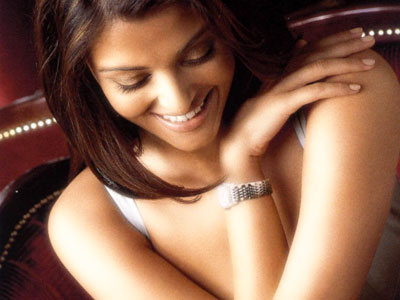
Now, erase unwanted parts from this layer using the eraser tool. Your image now have glowing skin :)