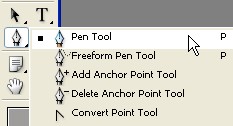
1. Firstly select the Pen tool .
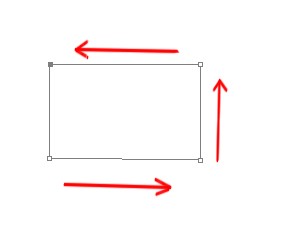
2. Now create a new document size 291x323 pixel or as you like now create a new shape with Pen tool.
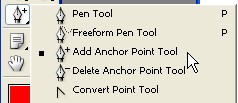
3. Now select the Add Anchor Point tool
4. Here look below click on shape with Add Anchor Point tool which is appearing below in red circle
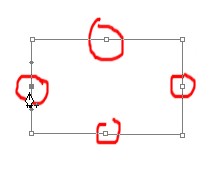
5.Click and drag to these Points with Add Anchor point tool.
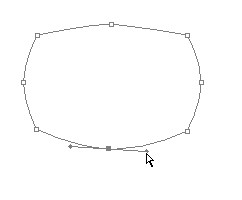
6. Drag this point with the help of Add anchor point tool.As you can see in the image below.
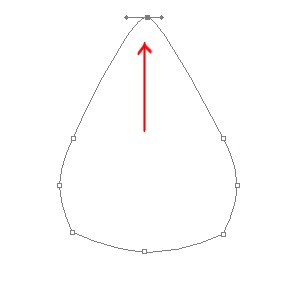
7. Now select the Delete anchor point tool click on the point .as shown below in red circle
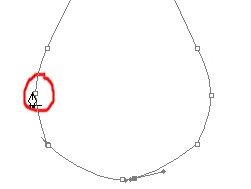
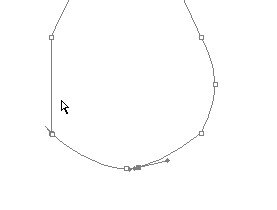

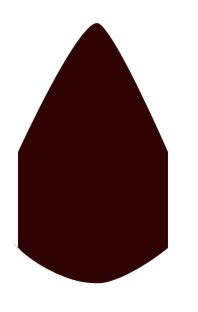
8. Fill the any nice color with Alt+Backspace now press the Ctrl+D
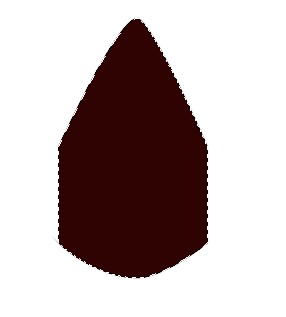
9. Done