Use either the custom shape tool or the pen tool draw this shape:

Duplicate the layer and flip it vertically to get something like this:
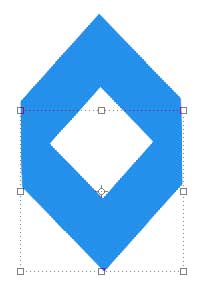
Hold down the <CTRL> key and click the shape, then press the <ALT> key to deselect the area using the selection tool.

On the new selection, draw a gradient from white to transparent:
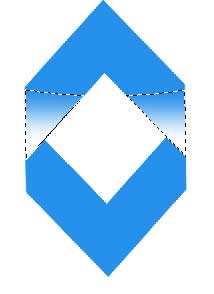
Reduce the transparency and repeat step two on this selection also.

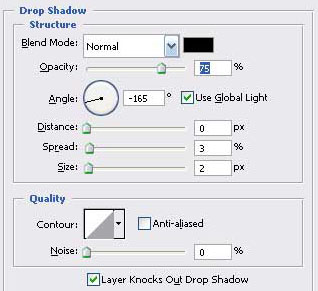
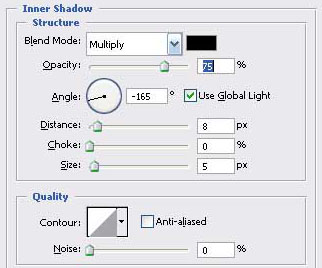
Go to the layer style and apply following effects:
The result will look something like this:

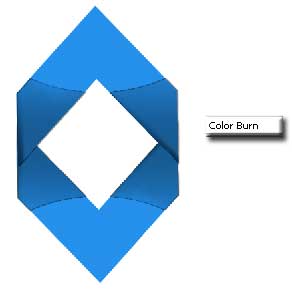
Now change the blending option to color burn:
Finalize the logo by adding the company's name to it: