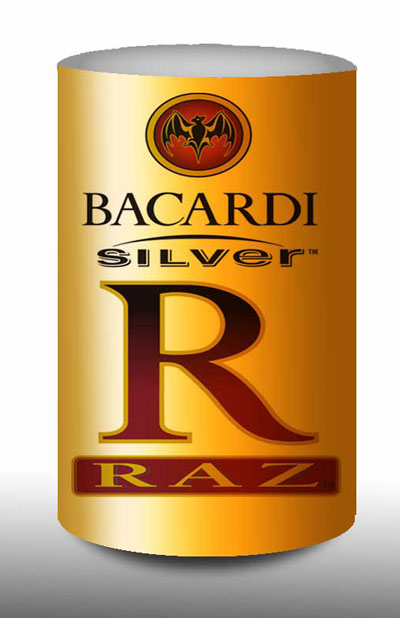
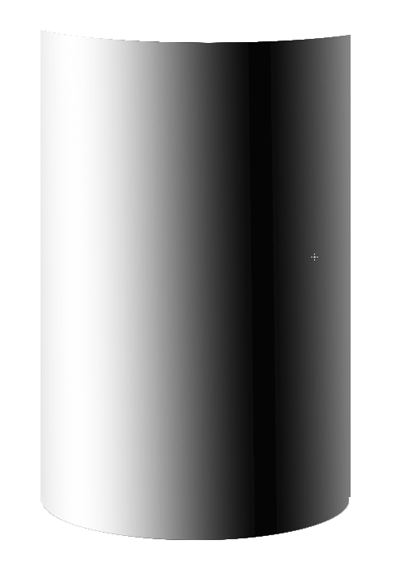
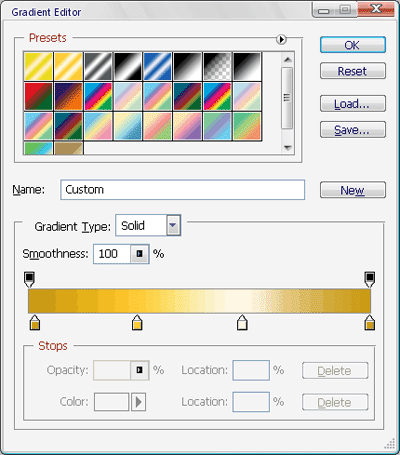
On a new layer draw a shape like this and fill with a gradient:
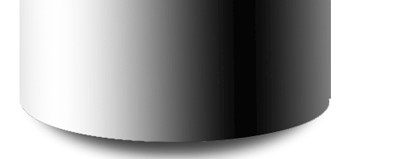
Then on a new layer draw a elliptical shape and give it gaussian until you get something like this, then place that below the layer having the main shape:
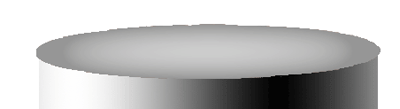
Next, draw a elliptical shape for the top:
After that, place an image which will be used as an cover for our can:
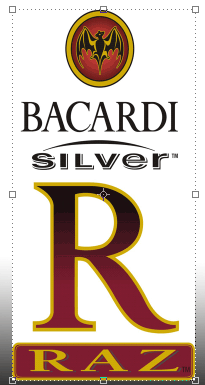
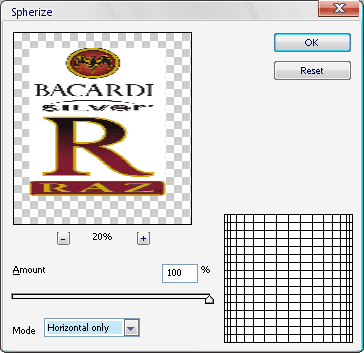
Then go to Distort -> Spherize and use these settings:
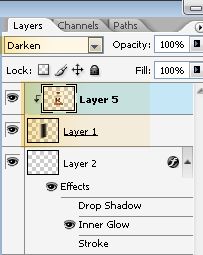
Now change the blending option to "Darken" and click between the top two layers while pressing the ALT key:
If you want to change the color of the can just apply a gradient to the second layer:
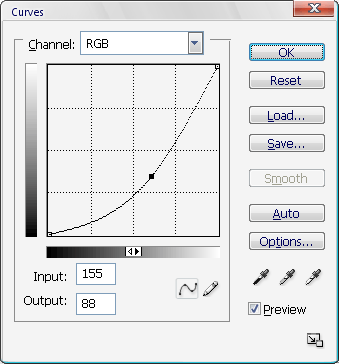
To make the can dark or light you can use curve tool by pressing CTRL + M:
Your final product should look like this: