Create a new document. Select the text tool. Type your text in Impact, 50pt Font, and Sharp Mode.

Now add color and style to each element that makes it stick out. I decided to use red, blue, and yellow, and make the center piece of text in italics.

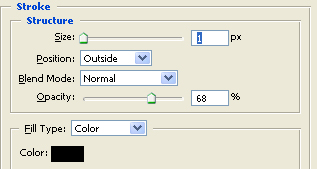
Now add a one pixel stroke to the text.
It will look like this.

Now select the elliptical marquee tool and make a selection over the text layer. Then, while pressing alt, select the text layer. This will leave the white selection below (look below). Then fill in the layer with white. Change the opacity to 35%. Look below to see what it looks like.

Select a pixel font on your computer and add your slogan in a nicely aligned spot under your logo. You can find some good pixel fonts at www.dafont.com

Create a new layer. Now load the selection of the font layer. Go to Select > Modify > Expand. Select 5 pixels. Then fill in the layer with a very light gray. Move the layer to the very bottom so the rest of your layers will show.

Now select the gray layer that you just made. Now go to Select > Modify > Border and use a selection of one pixel. Fill it in with a dotted line (which should be a pattern). The final product is located below.