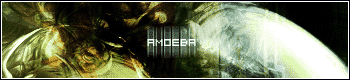
Step 1
First, make sure you have 2 abstract render images, and 2 images with good color/contrast.
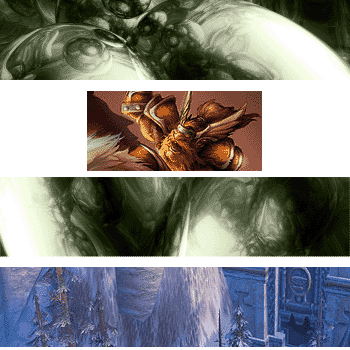
Step 2
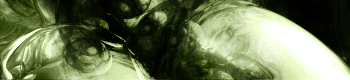
Open a new document. Set the size to the dimensions you want it to be. Now place an abstract image onto the document.
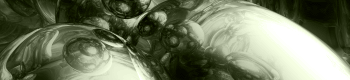
Step 3
Now make a new layer and place the second abstract image onto it.
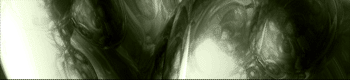
Step 4
Set the blending mode of the second layer to Overlay.
Step 5
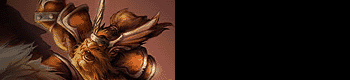
Now get one of your images with good contrast and place it to the left of the document.
Step 6
Set the blending mode on this layer to overlay.
Step 7
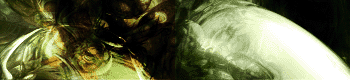
Now make a new layer and place your second image onto the document. This time put it on the right. Add a mask on this layer and fade out the left side of the image.
Step 8
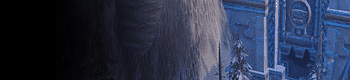
Next, type your name onto the signature(or whatever you want it to say). Duplicate this text and place it under the original. Goto LAYER>>RASTERIZE>>LAYER. Then motion blur this duplicated layer. Set the angle to 90 and distance to 25. Add whatever you want to finish it off.
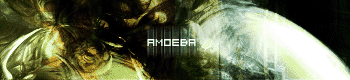
Final Result: