Step 1
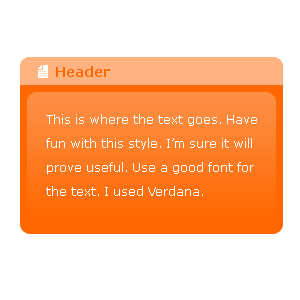
Open a new document and create a rounded rectangle using the Rounded Rectangle Tool.

Step 2
Duplicate this layer and change the color of this new rectangle to white. Goto Layer>>Rasterize>>Layer. Now select the bottom half of this layer and press delete. You should now see the top of the white rectangle and the majority of the first rectangle.

Step 3
Set the opacity of the white rectangle piece to 50%.

Step 4
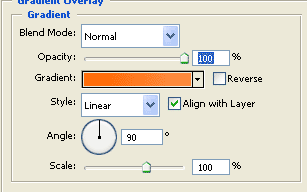
Now make a new layer and create another rounded rectangle within the dimensions of the first rectangle. Double click this layer to get to its Layer Style. Apply a gradient overlay with similar colors as the first rectangle. Make sure that whatever you choose, the lighter color must end up on top. I used the same orange as the first rectangle for the bottom and a lighter orange on top.
Step 5
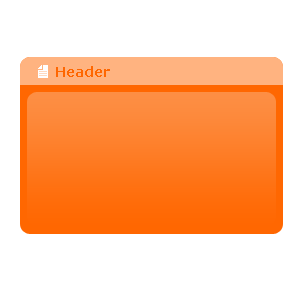
Now type something up for the header and set the text color to the color of the first rectangle. You can do whatever you want with the header. I added an icon as well.
Final Result: