Step 1
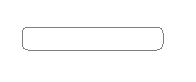
Open a new document and make a rounded rectangle.
Step 2
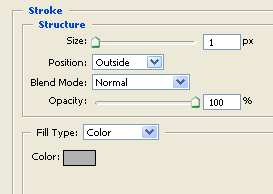
Double click this layer and at Layer Style, change the size to 1 and color to #b1b1b1.
Step 3
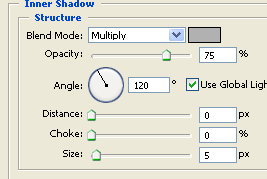
Next in the same Layer Style menu, click on Inner Shadow. Change the color to #b1b1b1, distance to 0, choke to 0, and size to 5.
Step 4
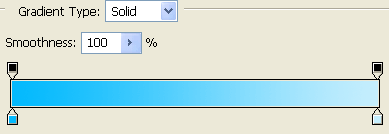
Next in the same style menu, click on gradient Overlay and change the colors. I chose light blue with an even lighter blue on top.
Step 5
use the Marquee Tool and make an oval above your button. Fill it with white. and set the opacity to 40% and Fill to 50%. Finally type whatever text you want in it.
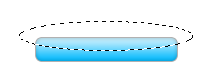
Final Result: