Step 1
Create a new document with a dark background.

Step 2
Use the Pencil Tool and set it to 1px wide. Make sure Feather is OFF. Make a new layer and draw a 1x1px white dot.

Step 3
Make a new layer and make a 'plus sign' with the 1px wide pencil. Look at the picture for reference.

Step 4
On this layer, goto Filter>>Blur>>Gaussian Blur and select radius to 2. Place the layer with the blurred image under the layer with the 1 px solid white dot. I zoomed in some so you can see it.

Step 5
Merge these two layers together and duplicate it many times. Then scatter them as you wish. You can even combine them to make them vary in size.
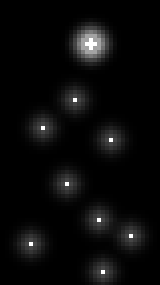
Final Result: