Step 1
Create a new document and type something up.

Step 2
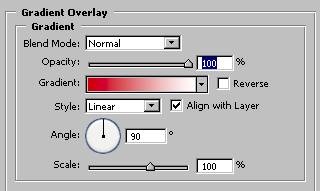
Double click the layer with the text and apply a gradient overlay on it. You can change the gradient color to anything you like. Make sure the darker side is on bottom and the lighter side is on top by adjusting the angle.
Step 3
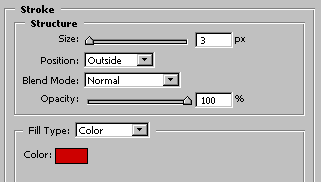
Next click on Stroke in the Layer Style and select a darker color than the one used in the gradient. Set the size to 3.
Step 4
Use the Elliptical Marquee Tool and create an oval selection around the top of the text. Fill it with white. Then set the overlay to 30% and fill to 50%.

Final Result: