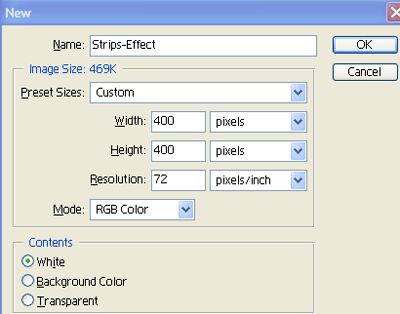
1. First of all open new document of Custom size 400x400 pixels Resolution 72, and Mode RGB Color as shown below
2. Now select these colours
 in foreground and background and fill by the Press Alt+Backspace
3. Now select Text Tool
 and write words as shown below

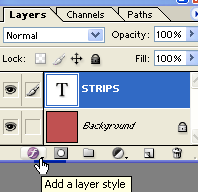
4. Now select Text Layer and Click on sign 'f ' which is indicating by handsign as shown below in figure.
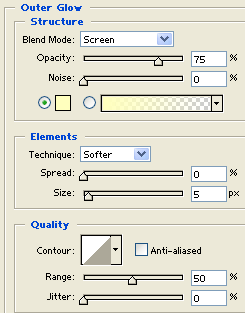
5. Now select Outer Glow and use the following settings
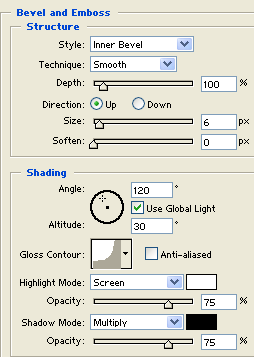
6. In Layer Style select Bevel and Emboss and apply the following settings
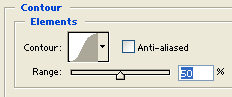
7. Now select Contour and apply the following settings
8. Now go to Filter>Noise>Add Noise and Text will be shown as below in figure

9. Now go to Filet>Blur>Motion Blur and use the following settings
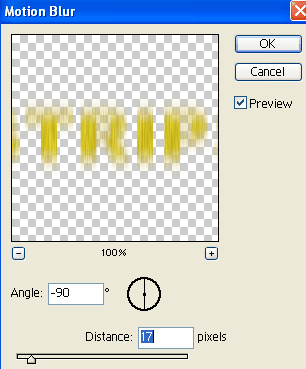
10. After use the above settings you r Text will be shown as below

11. Now the press Ctrl+J for making duplicate layer as show below
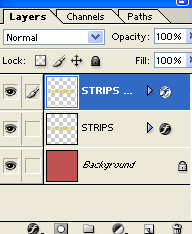
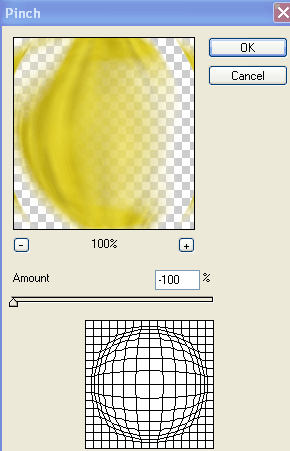
12. Now select Original Text Layer (which must be below duplicate layer) and Go to Filter>Distort>Pinch
And apply the following settings
13. At last, all settings have been completed and your Text will be shown as below in figure.