1. Type the text with Pale Cool Brown as shown below.

2. Filter > Noise > Add Noise
(Amount: 7, Uniform, Monochromatic)
Say OK when asked for Rasterizing the type.

3. Filter > Artistic > Watercolor
(Brush Detail: 14, Shadow Intensity: 0, Texture: 3)

4. Layer > Layer Style > Bevel and Emboss
Change the Gloss Contour to Ring
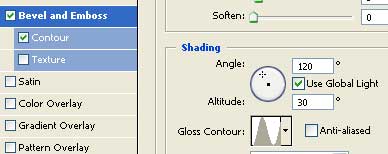
5. Select Contour. Change to Rounded Steps.
Select Drop Shadow also