

Step 1
Open a document and create a long thin rectangle above the stage. Make sure it stretches all the way across the width of the stage. Press F8 and convert it to a movie symbol. Double click this object to edit the movie symbol.

Step 2
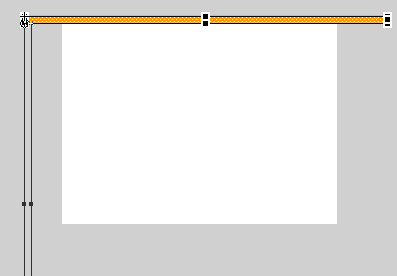
Press F8 again and this time convert it to a graphic symbol. Now duplicate this rectangle 10 times and put them on their own layer. On frame 1 of layer 1, move the pivot point of the rectangle to the bottom left. Now make a keyframe at frame 20. Rotate the rectangle down all the way around until it is off to the left of the stage. See the picture.
Step 3
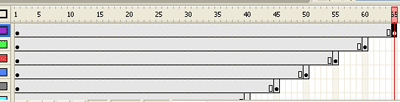
Do this for all of the frames but make sure to add 5 frames for each layer. For example, on layer 1 we added a keyframe on frame 20 and rotated. On layer 2 add a keyframe on frame 25 and rotate. On the third layer goto frame 30, insert keyframe and rotate. etc etc... the last layer should be on frame 65.
Note: before you insert keyframes, make sure your pivot point is to the bottom left.
Selecting a new layer will reset the point.
Step 4
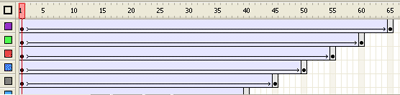
Now that they're all on the left side of the stage, insert a motion tween on all of them.
Final Result:
