Open a new document.
Select black as the Foreground color.
With your type tool write some text:
( i have used the Thickhead font - 135 pt )

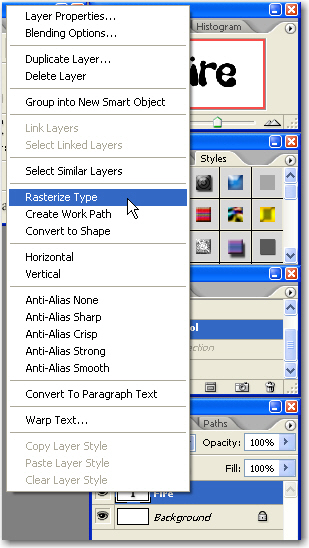
Right-click the type layer in the Layers palette and choose Rasterize Type from the menu.
Be sure you have black as the foreground color . If not press D on your keyboard
Choose Filter > Artistic > Neon Glow
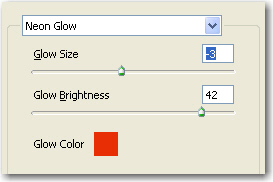
In the Filter Gallery, set the settings for the glow as shown in the following image.
Color is #ef2a04
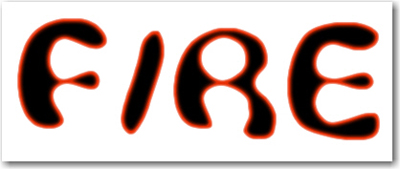
You should have something like this:
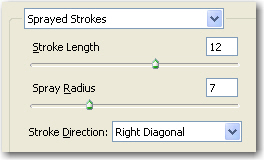
Choose Filter > Brush Strokes > Sprayed Strokes and use the following settings:
Now with the Fire layer selected press on Ctrl+J to duplicate
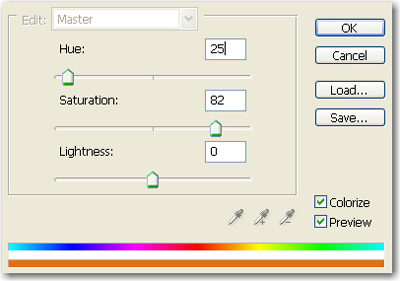
Press on Ctrl+U ( Hue/ Saturation ) and use the following settings:
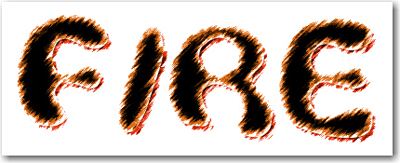
Move this layer with your arrows keys like in the next image:
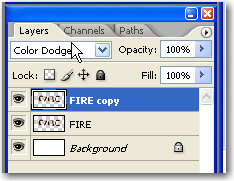
Now change the blending mode for the " Fire Copy " layer to Color dodge
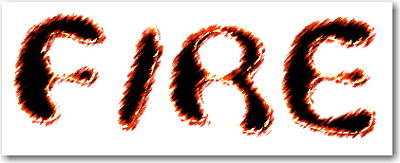
This is the final result
I hope you like this tutorial.
