


This is what we gone do today
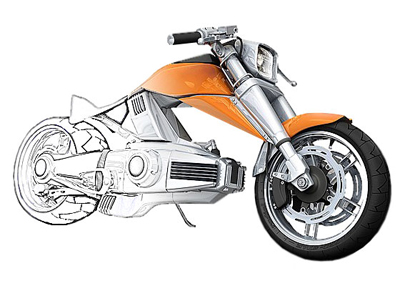
So open the following image in photoshop
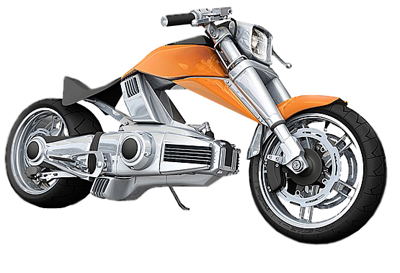
Rename the layer to " Layer 1 " ( in this way it is very easy for you to follow my tutorial )
Duplicate the layer ( press Ctrl+J ) , then rename this layer to " Layer 2 "
Then go to Image > Adjustments > Desaturate ( or press Shift+Ctrl+U ) This is the result
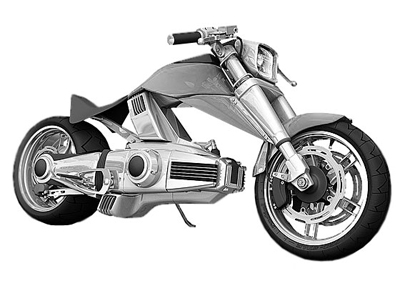
Duplicate "Layer 2" ( press Ctrl+J ) , then go to Image > Adjustments > Invert ( or press Ctrl+I )
Please rename this layer to "Layer 3"
This is the result
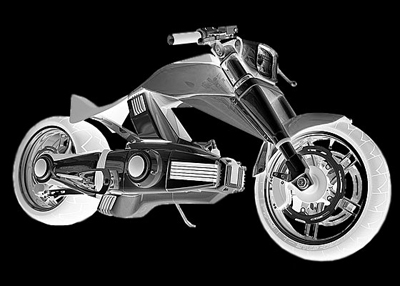
Then Change the Blending mode to Color Dodge
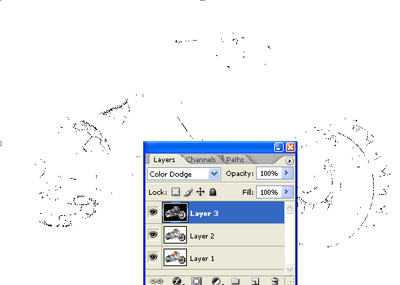
Then go to Filter > Blur > Gaussian Blur
Use the following settings
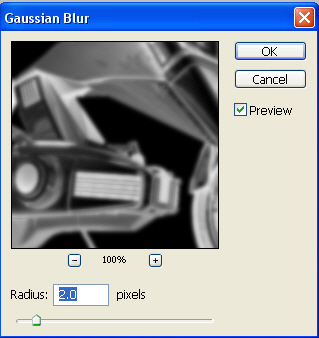
After you will click OK, you will have this result
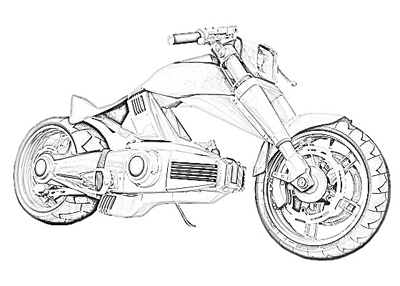
Then drag "Layer 1" to the top of the layer palette.
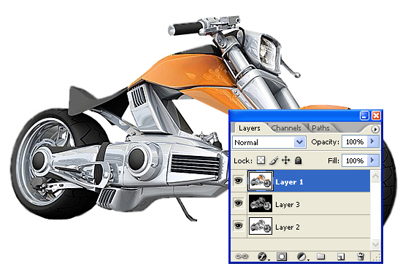
With "layer 1" selected press on the "add layer mask button"
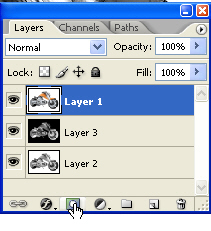
Then Select Gradient Tool.
Use the following settings

Then make a small line on your canvas ( follow the size of my blue arrow )
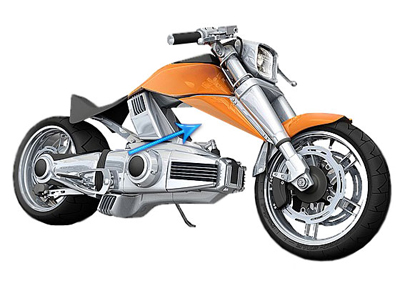
This is the result
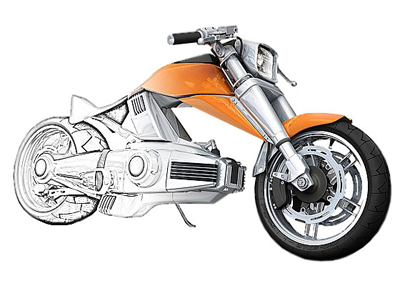
Now grab The brush tool ( use a small rounded brush )
Set the foreground color to white
Select "Layer 2"
Zoom your document to 400 % or 500 %
Then with the brush tool start drawing on the image
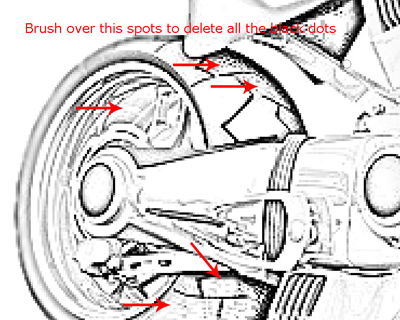
After 3-4 minutes of small tweaking with brush, this is my final image
Nice isn't it ?
