


Intro
In your animation, there will be many instances in which a change in color will be needed. Whether it be to hide or show an object, this technique can be used in many ways. We will discuss a simple color change.
Step 1
Open a new document and put something on the stage that you want to color tween.

Step 2
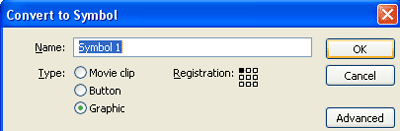
Select your object and press F8. Convert it to a graphic symbol.
Step 3
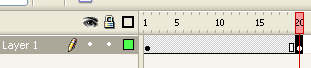
Click on frame 20 and press F6 to insert a new keyframe.
Step 4
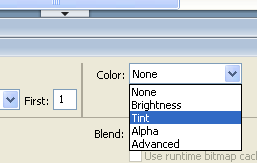
While on frame 20, select your object and goto its properties. Under properties change the color mode to "Tint".
Step 5
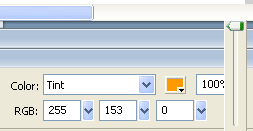
Select your new color from the color palette next to the color mode and change the opacy to 100%.
Step 6
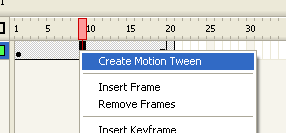
Now right click anywhere between the two keyframes and select Motion Tween. Press Ctrl+Enter to view your animation.
Final Result:
