Step 1
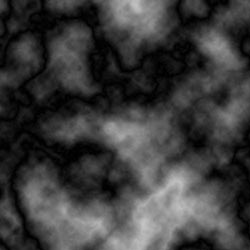
Create a new document of any size, I'm using a 300x300 document here.
Go to "Filter-> Render->Clouds"
Step 2
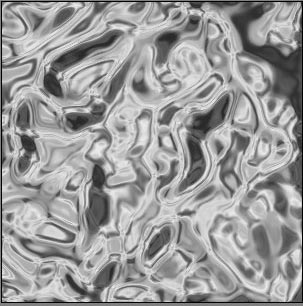
Go to "Filter-> Sketch->Chrome" and set all the setting of 10:
Step 3
Press Ctrl+Shift+L to apply Auto Levels Correction to your current document.
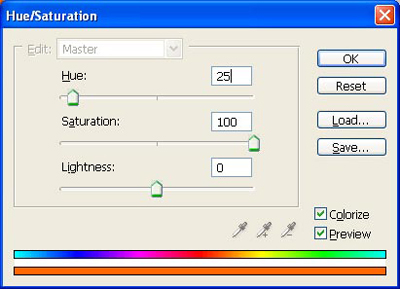
Next we'll add some color. Go ahead and press Ctrl + U on your keyboard to bring up the Hue/Saturation dialog
Apply the following settings.
Make sure you check the colorize box
Step 4
Press Ctrl + N on your keyboard to create a new layer and select black as your foreground color.
Next go to "Filter-> Render-> Clouds"
Step 5
Press Ctrl+Shift+L to apply Auto Levels Correction to your current document.
Next we'll add some color. Go ahead and press Ctrl + U on your keyboard to bring up the Hue/Saturation dialog
Apply the following settings.
Make sure you check the colorize box
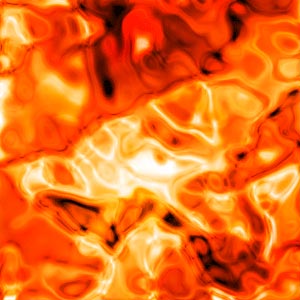
And you have created a great looking lava background for use on your headers, and webpage backgrounds. Here is how my final result ended up: