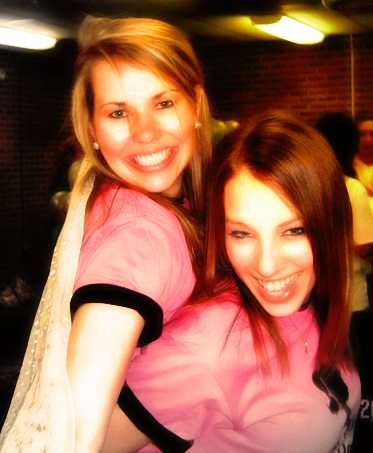
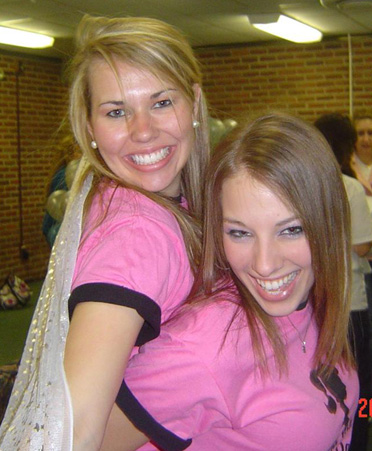
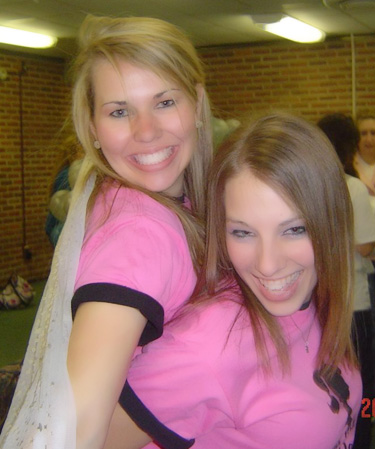
Start by opening any image.
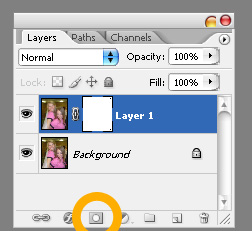
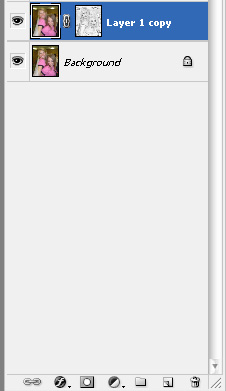
Duplicate the layer. Click add layer mask button from the bottom of the layer palette.
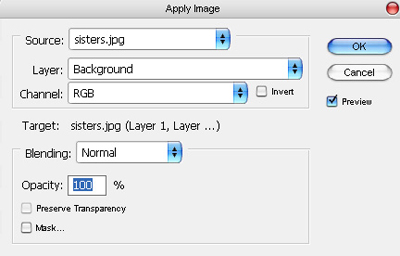
Select the mask thumbnail if not selected. From image menu select apply image. Apply settings as shown.
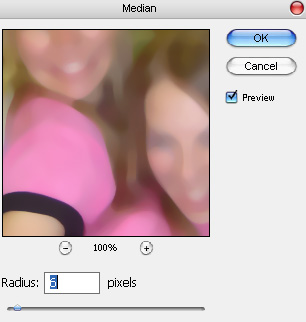
From "Filter" menu select "Noise>>Median". Apply settings as shown.
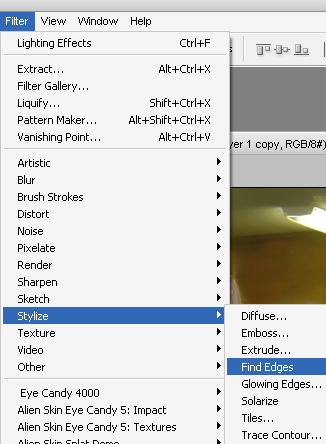
From "Filter" menu select "Stylize>>Find Edges". Apply settings as shown.
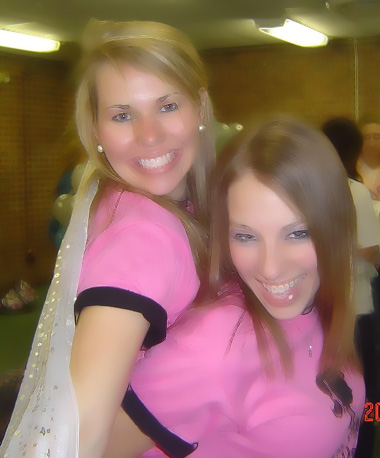
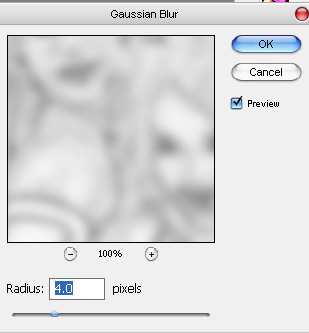
From "Filter" menu select "Blur>>Gaussian Blur ". Apply settings as shown.
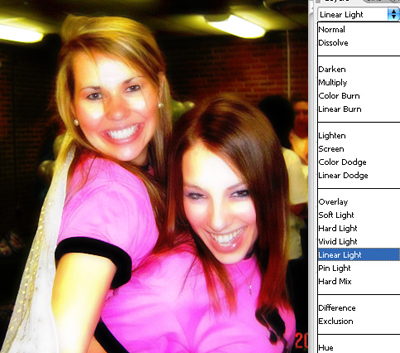
Change the layer mode to "Linear Light".
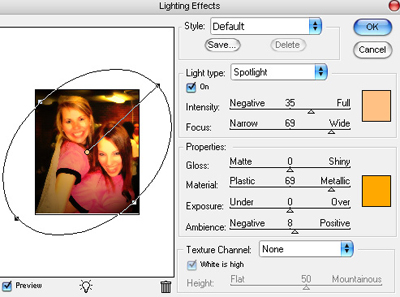
Duplicate the layer. From "Filter" menu select "Render>>Lighting". Apply settings as shown.
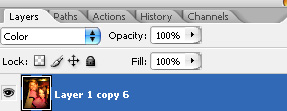
Change the layer mode to "Color".