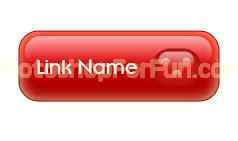
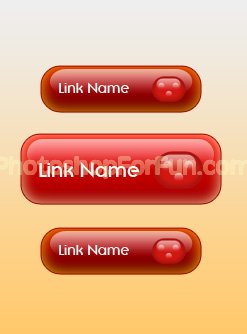
Select the rounded rectangle tool. Adjust settings at the top as shown below.
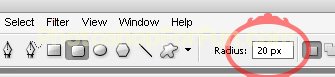
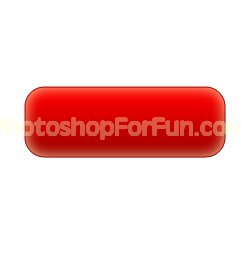
Create a rounded rectangle with these settings.
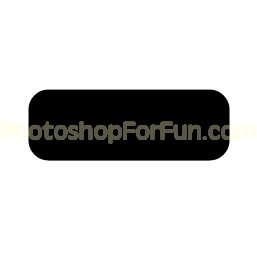
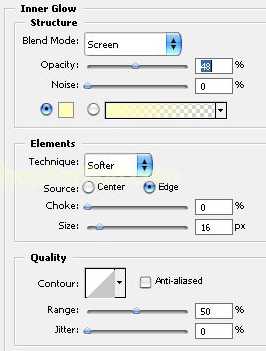
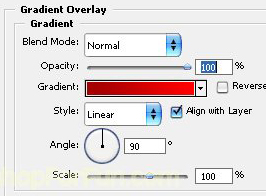
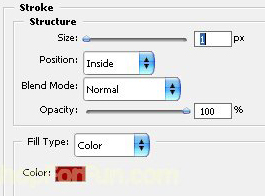
Double click the layer to open layer style window. Apply settings as shown.
Create another rounded rectangle using rounded rectangle shape tool. Reduce fill amount to 0%.
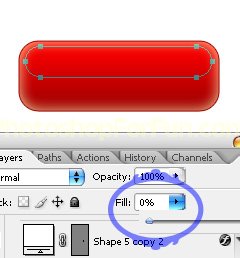
Double click the layer to open layer style window. Apply settings as shown.
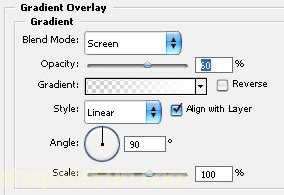
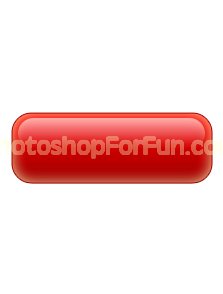
Create a small rounded rectangle using rounded rectangle shape tool.
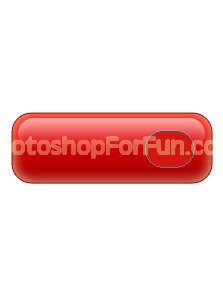
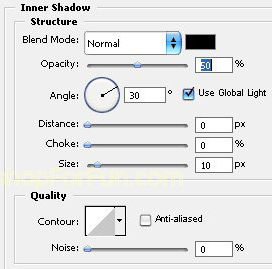
Double click the layer to open layer style window. Apply settings as shown.
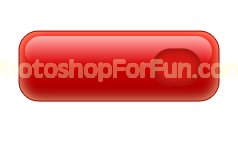
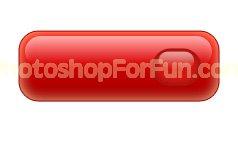
As we created glassy look on button similarly create a glassy look on this small rounded rectangle.
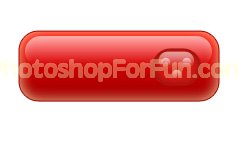
Create three circles using elliptical shape tool. Apply similar layer style.
Type link name using a modern font.