Start by applying a gradient (light gray to white) to the background. Create two gray rectangles using rectangular shape tool. Place it on the top and bottom as shown.
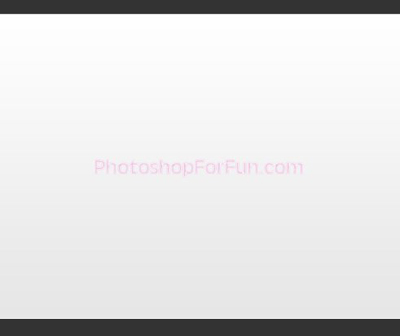
Create a rectangle for the header using rectangular shape tool. Apply gradient overlay style. Use a web 2.0 color like lime,red or orange.
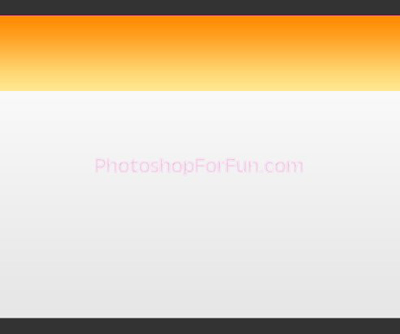
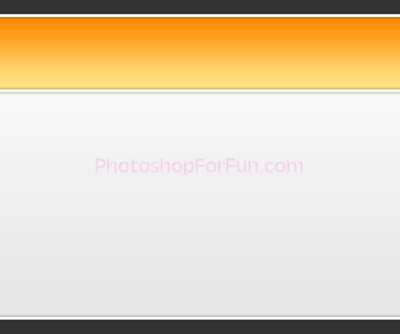
Create a line using line tool. Fill it with white color.
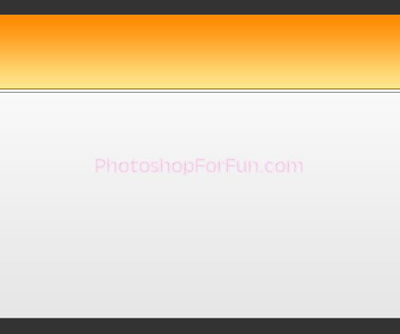
Double click the layer to open layer style window. Apply settings as shown.
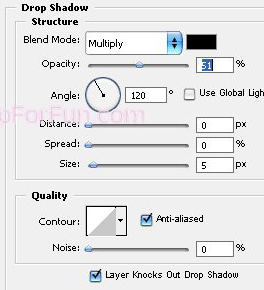
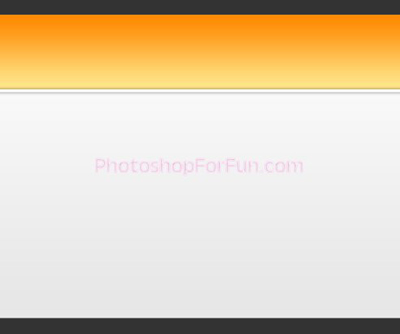
Duplicate the layer twice and place as shown.
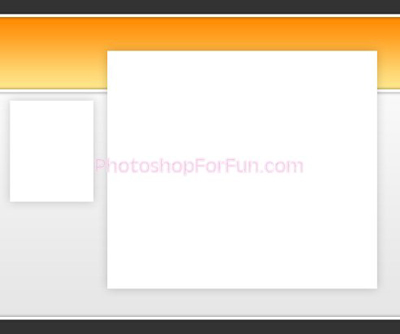
Create two more rectangles for the content area as shown. Apply same layer style.
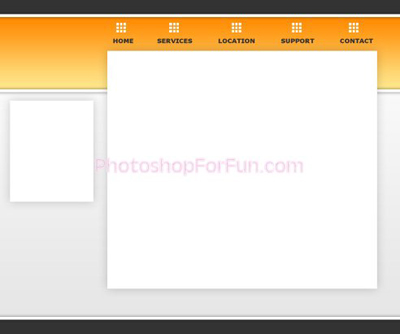
Create an icon of nine very small squares using rectangular shape tool. Insert this icon with each link name as shown.
Create two rectangular bands. Place them as shown. Apply same gradient we used for the header.
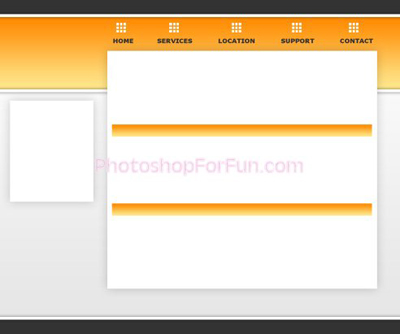
Create a square as shown.
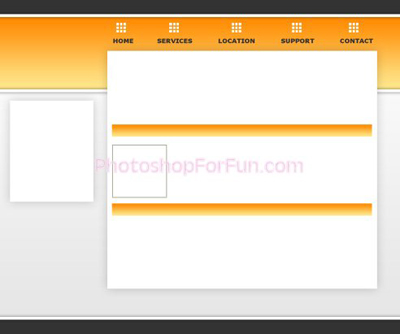
Insert a relevant image. Move this layer right above the square layer in layer order in layer palette. Press Ctrl+Alt+G to create a clipping mask.
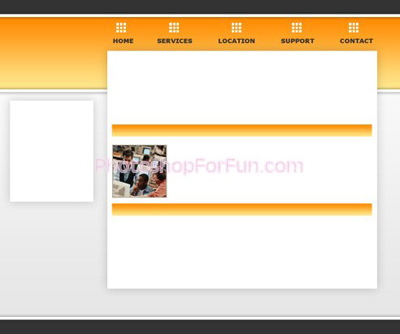
Similarly insert more images. Type content and information next to the images.
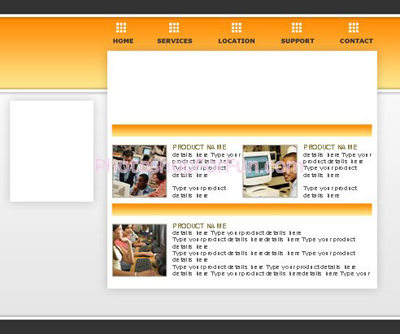
Populate the template by inserting more images, text and company name & logo.