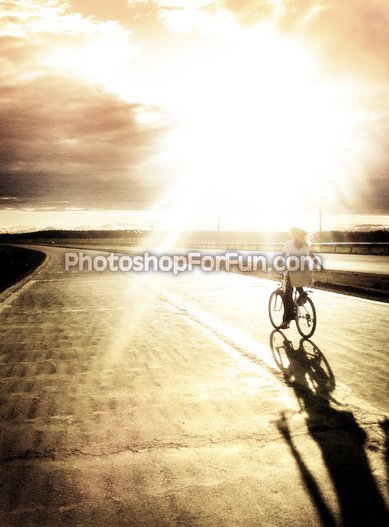
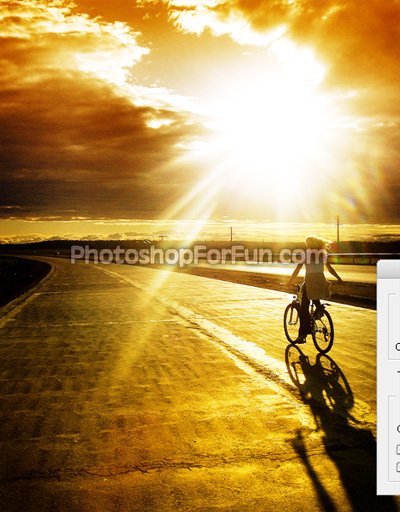
Start by opening any dark image.
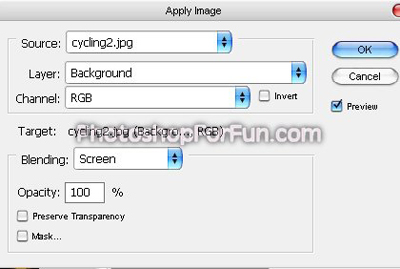
Duplicate the layer and hide it. From image menu select "apply image". Apply settings as shown.
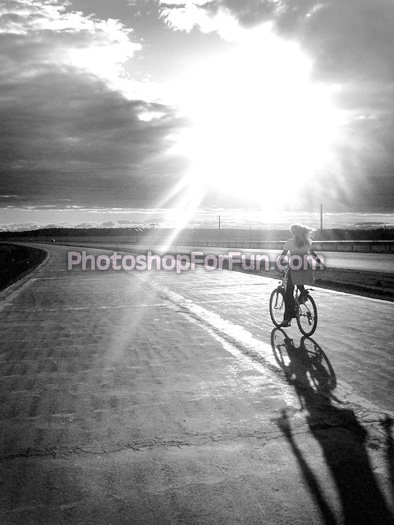
Duplicate the layer again. Press Ctrl+Shift+U to desaturate the layer.
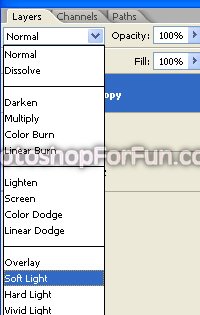
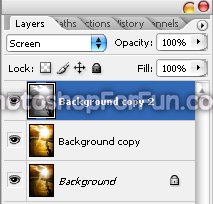
Change the layer mode to "Screen".
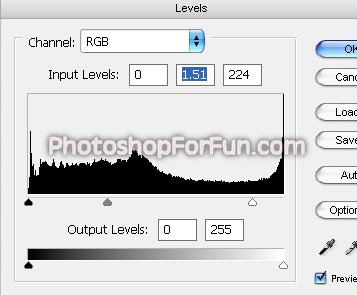
Press Ctrl+L to open Level settings. Adjust the arrows as shown.
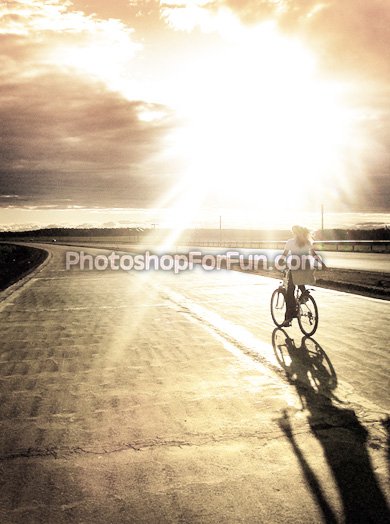
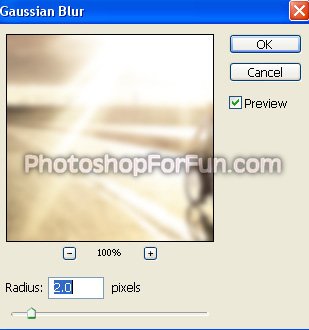
Select and merge all the layers. Duplicate the layer. From filter menu select "Blur>>Gaussian Blur". Apply settings as shown.
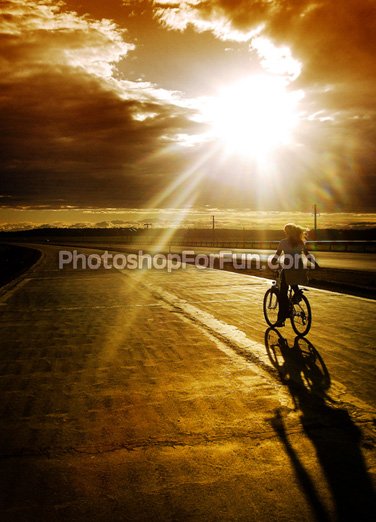
Change the layer mode to "Soft Light".