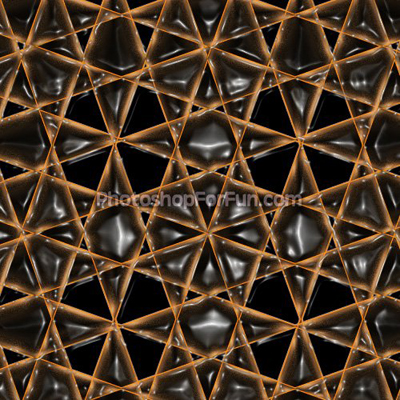
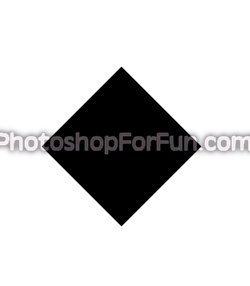
Start by creating a "diamond card" shape using custom shape tool.
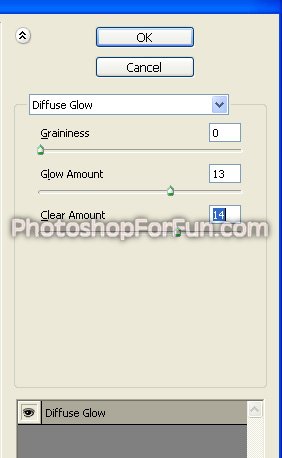
From filter menu select "Distort>>Diffuse Glow". Apply settings as shown.
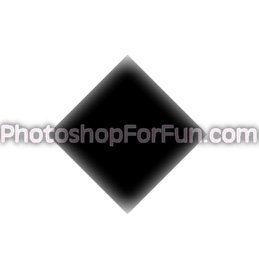
Press Ctrl+T and scale the it horizontally.

Create several duplicates of the layer and arrange it as a tile pattern
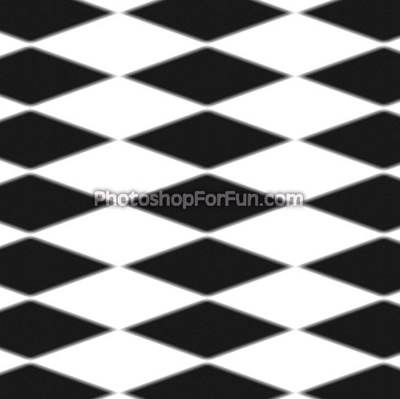
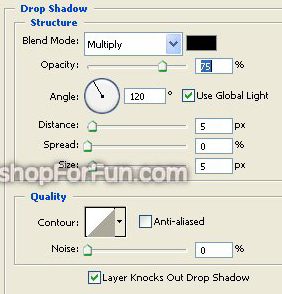
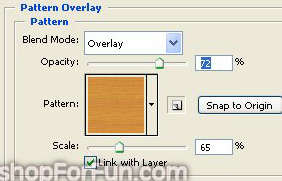
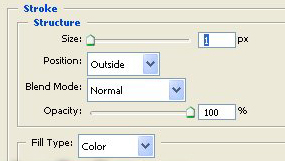
Select and merge all the diamond layers. Double click the layer to open layer style window. Apply settings as shown.
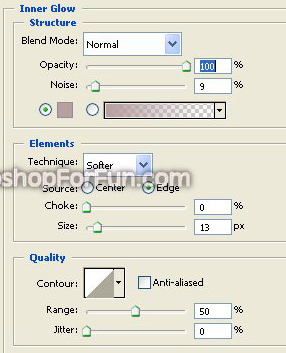
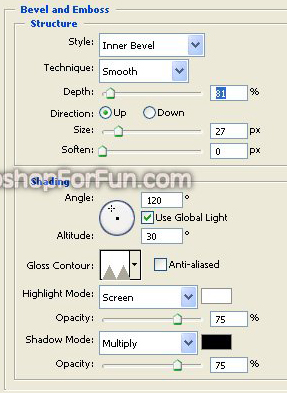
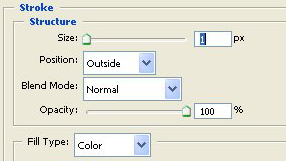
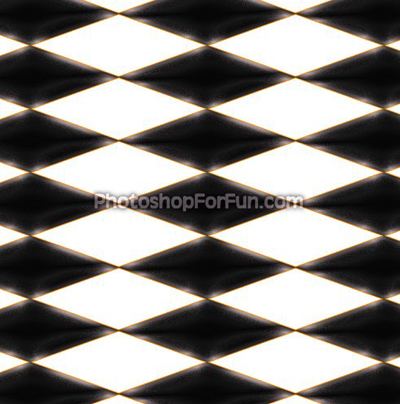
Duplicate the layer. Press Ctrl+T. Right click the layer and select rotate 90°. Change layer mode to lighten. Select and merge both the layers.
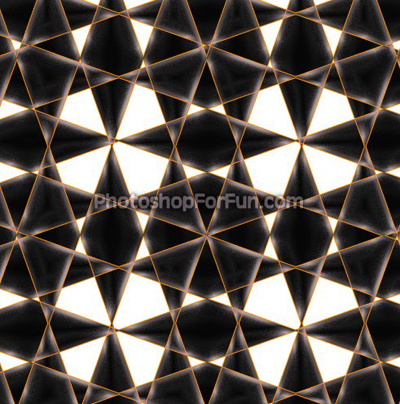
Double click the layer to open layer style window. Apply settings as shown.
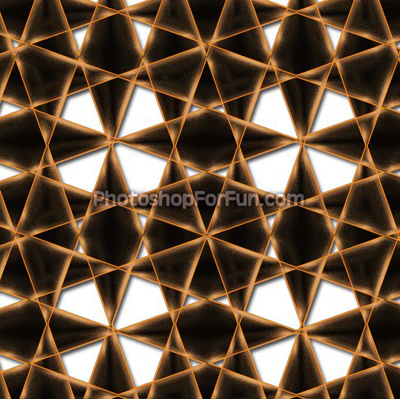
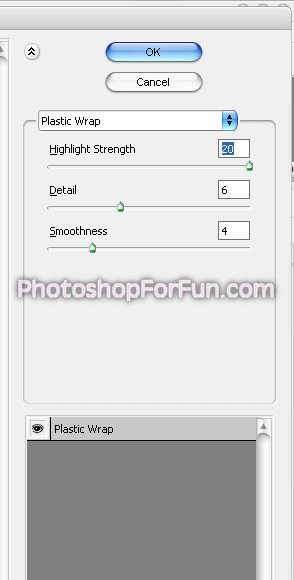
From layer menu select layer style>>create layers. Select and merge all the resulting layers. From filter menu select "Artistic>>Plastic Wrap".
Fill the background with black color.