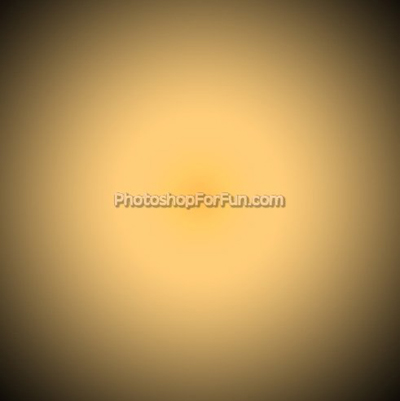
Start by applying a nice gradient to the background in radial mode.
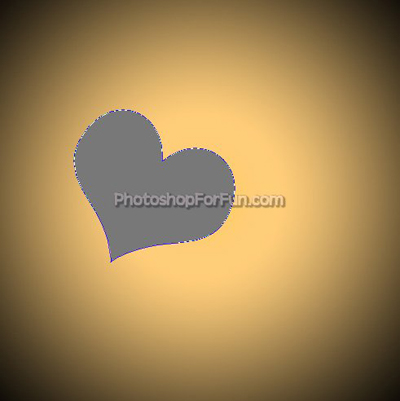
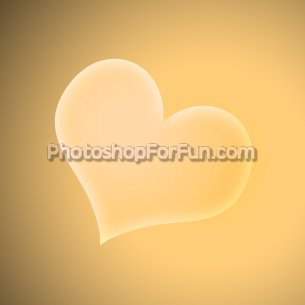
Create "Heart" shape using custom shape tool.
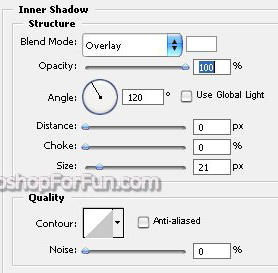
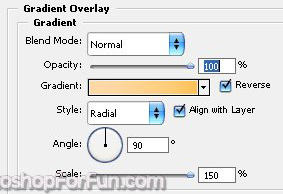
Double click the layer to open layer style window. Apply settings as shown.
Create a triangle using pen tool.
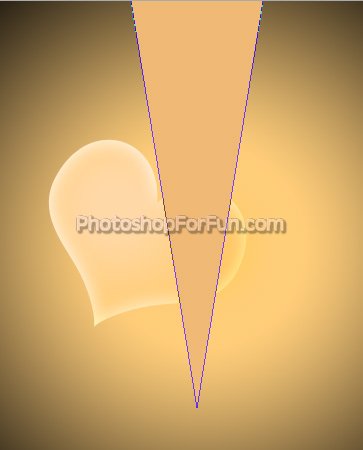
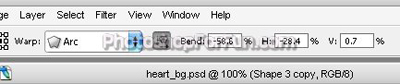
Press Ctrl+T. Right Click and select Warp. Select "Arc" style from the preset warp shapes. Apply settings as shown.
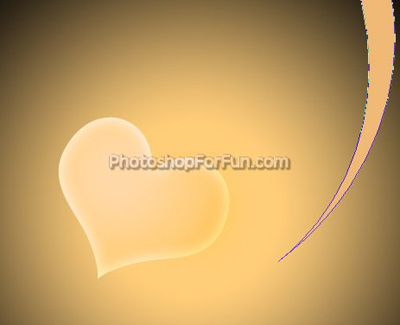
Similarly create more tentacle shapes with different shades of brown.
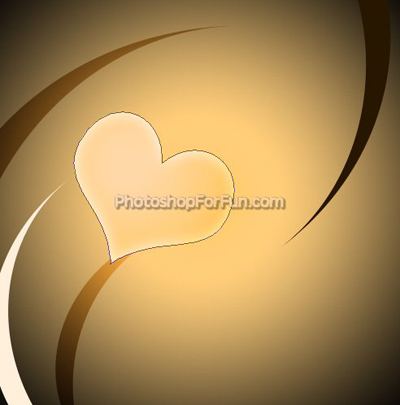
Create "Grass 3" shape using custom shape tool. Apply same layer style we used for the heart layer. Play around with colors.
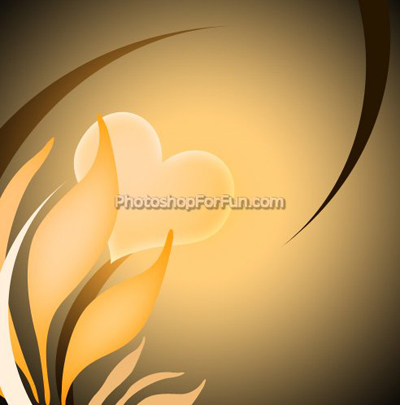
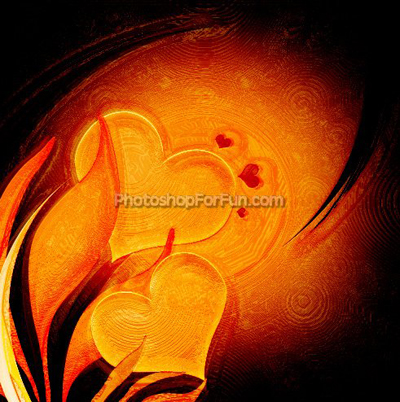
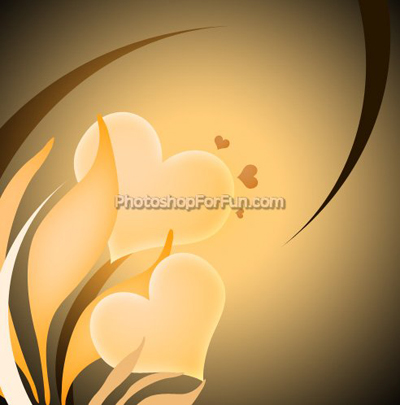
Add more heart shapes and place as shown. Select and merge all the layers.
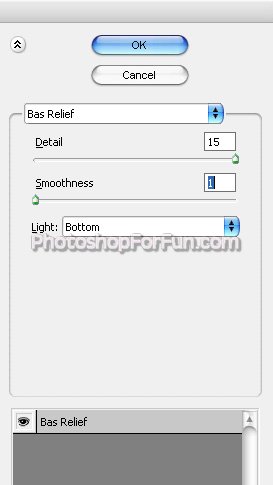
Duplicate the layer. From "Filter" menu select "Sketch>>Bass Relief ". Apply settings as shown.
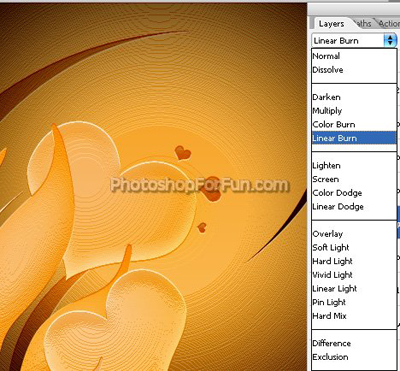
Change the layer mode to "Linear Burn ".
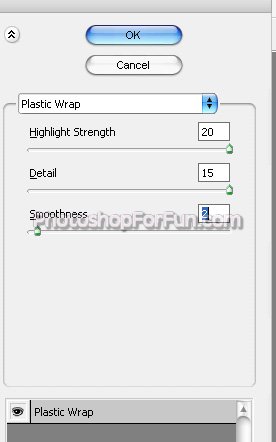
Duplicate the merged original layer again. From "Filter" menu select "Artistic>>Plastic Wrap". Apply settings as shown.
Change the layer mode to "Color Burn ".
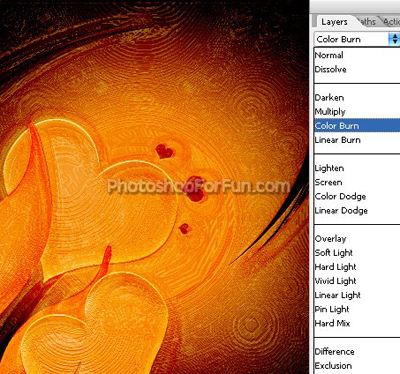
Select and merge all the layers. Duplicate the layer. From "Filter" menu select "Blur>>Gaussian Blur ". Apply settings as shown.
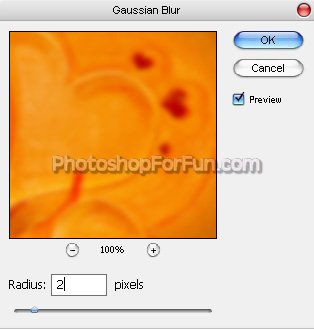
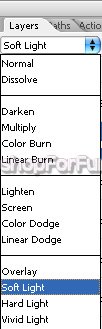
Change the layer mode to "Soft Light ".