Start by creating a rounded rectangle using rounded rectangle shape tool.
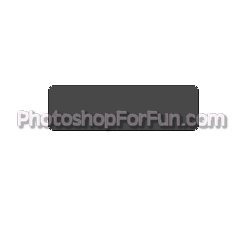
Select the path using path selection tool. Duplicate the path and rotate it 90°.
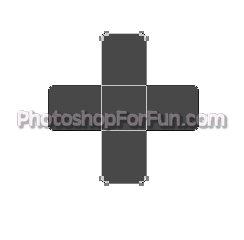
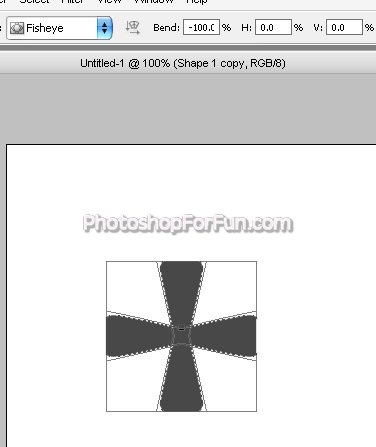
Select both the paths. Press Ctrl+T. Right Click and select Warp. Select "Fisheye" style from the preset warp shapes. Apply settings as shown.
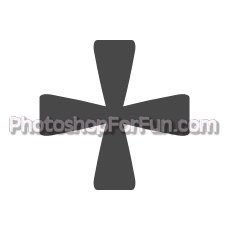
Enable "subtract from shape area" at the top bar. Create a circle using elliptical shape tool.
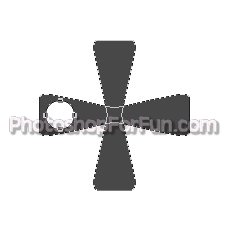
Similarly create more holes.
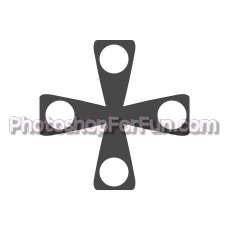
Enable add to shape area from the top bar. Create arrow shapes as shown.
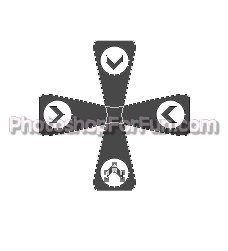
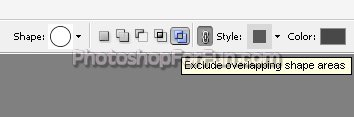
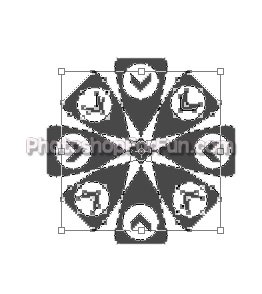
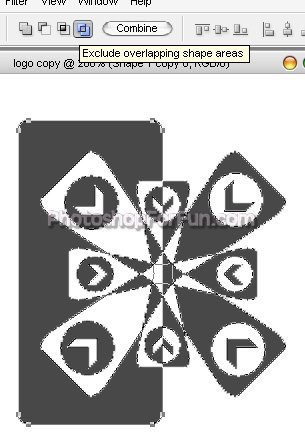
Select and duplicate all the paths. Rotate them 45°. Select "exclude overlapping shape areas" from the top bar.
Press Ctrl+T and scale them as shown in the image below.

Create a rounded rectangle using rounded rectangle shape tool.
Type company name and punch line as shown in the image below.