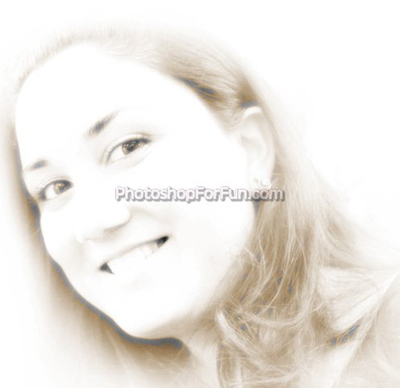
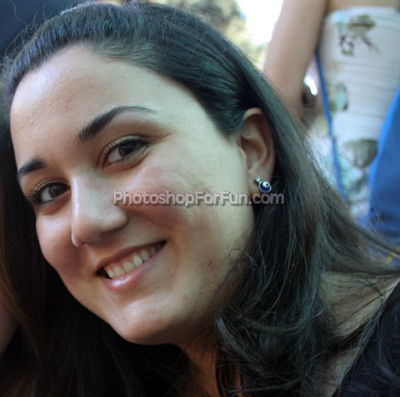
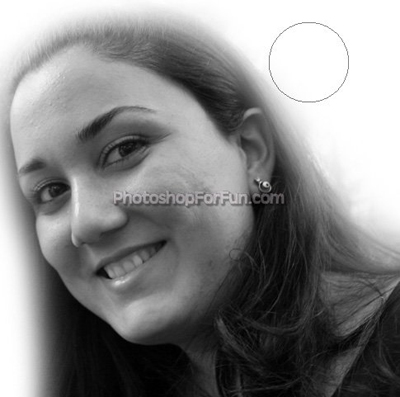
Start by opening an image of a lady with face closeup.
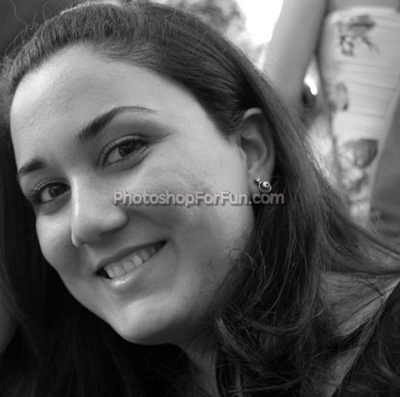
Press Ctrl+Shift+U to desaturate.
Select eraser tool with soft brush settings and erase the outer areas as shown.
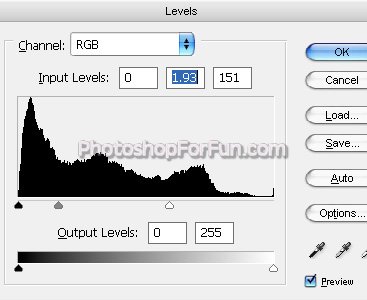
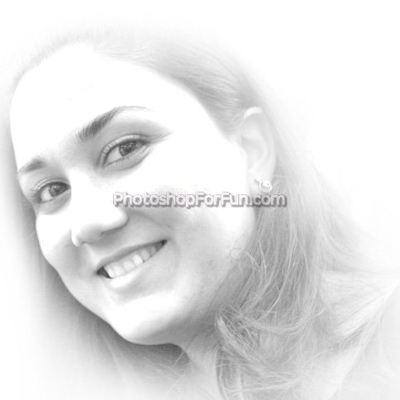
Press Ctrl+L to open level settings. Apply settings as shown.
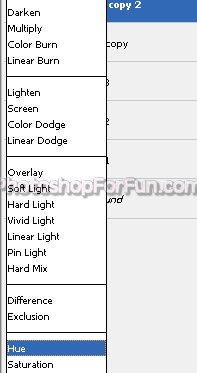
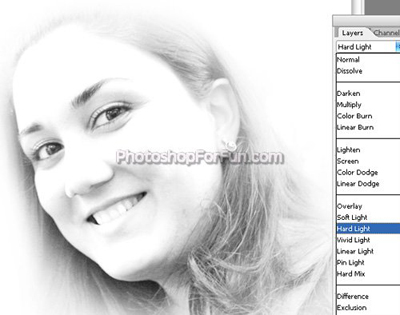
Duplicate the layer and change the layer mode to "Hard Light".
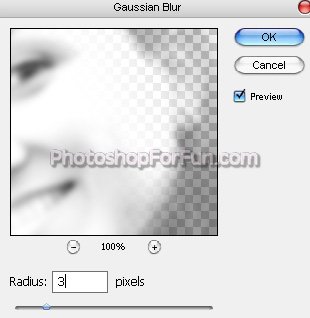
Select and merge both the layers. Duplicate the layer. From "Filter" menu select "Blur>>Gaussian Blur ". Apply settings as shown.
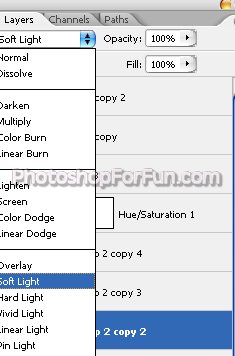
Change the layer mode to "Soft Light".
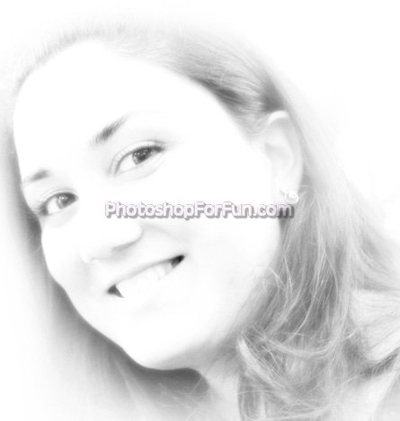
Press Ctrl+U to open hue/saturation window. Apply settings as shown.
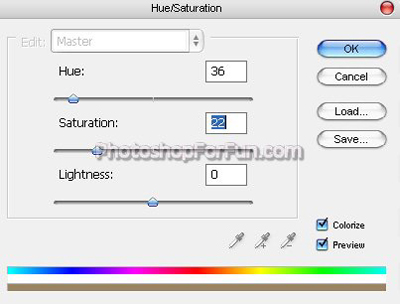
Adjust the hue/saturation.
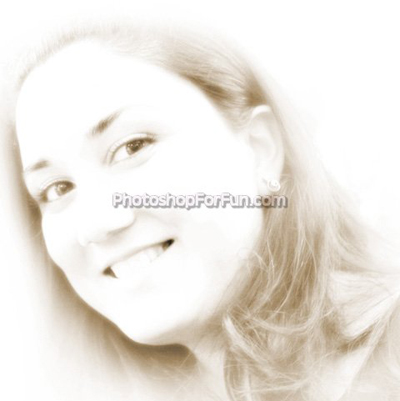
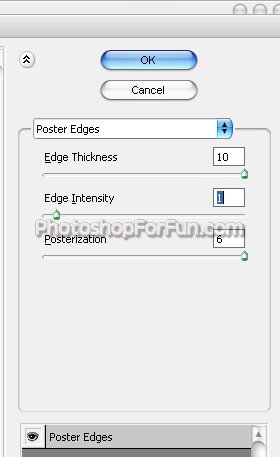
Select and merge both the layers. Duplicate it. From "Filter" menu select "Brush Strokes>>Poster Edges". Apply settings as shown.
Change the layer mode to "Hue".