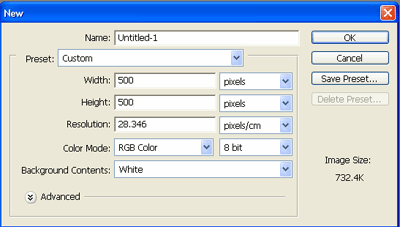
1. Start out by creating a 500 x 500 pixels document.
2. Press D

3. Draw a circle using this tool:

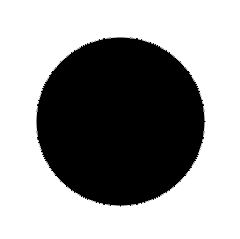
4. Now go to Filter > Render > Difference Clouds. Now you should have something like this:
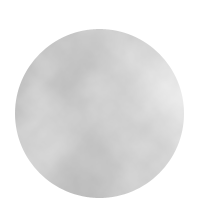
5. Go to Image > Adjustments > Levels
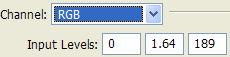
You should now have something like this:
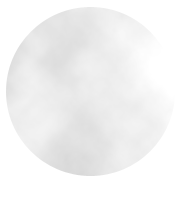
6. Go to Filter > Sharpen > Unsharp Mask,Set amount to 50%, Radius to 3.0, Threshold to 15. Now you should have something like this:
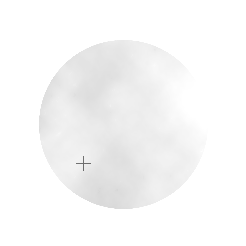
7. Now go to Filter > Distort > Spherize. Set the amount to 100 %, you should now have something like this:
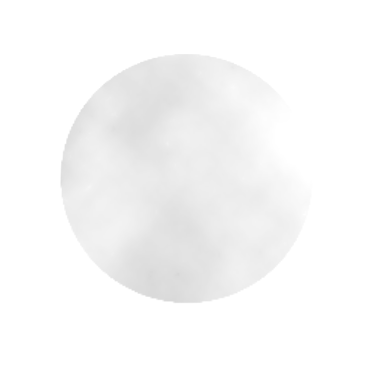
8. Repeat the last step but change the amount to 50%, Now you should have something like this:
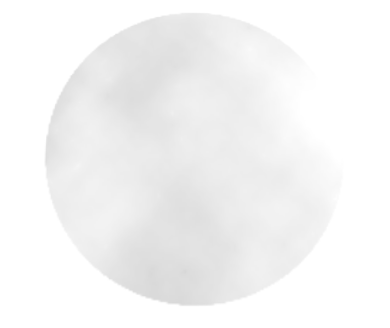
9. Now go to Image > Adjustments > Color Balance,use these settings:
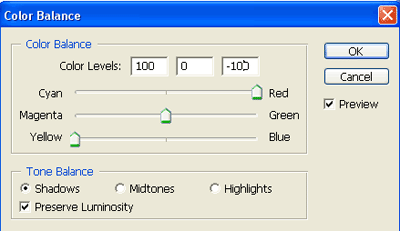
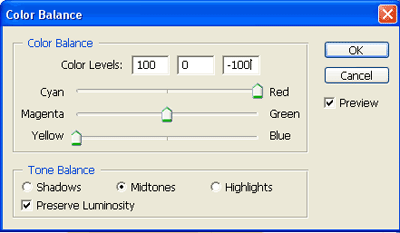
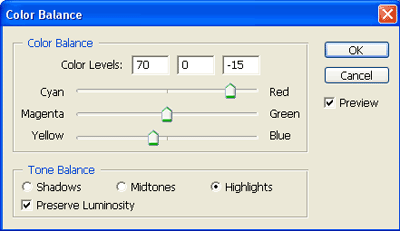
Now you should have something like this:
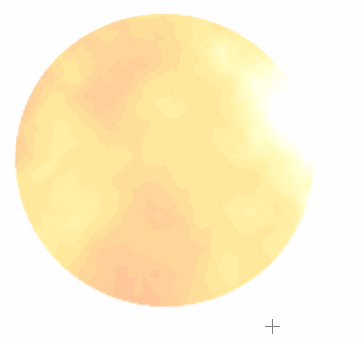
10. Go to Filter > Sharpen > Unsharp Mask
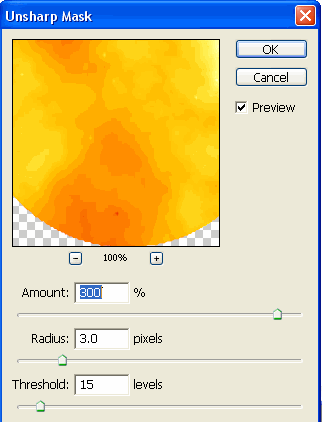
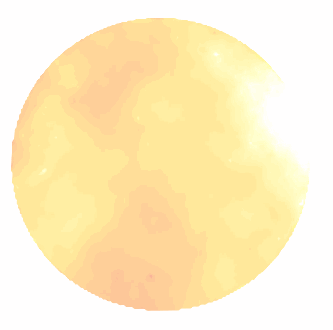
11. Final Result: