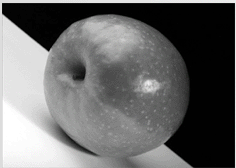
1. Open up any picture you would like to use.
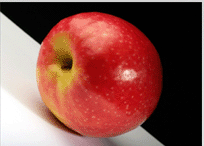
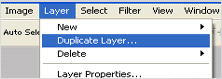
2. Next go to the top menu. Layer > Duplicate. You should have two of the same image inside your layer box.
3. Next click on your duplicated layer, then press Shift + Ctrl + U. It's the shorter way then going to Image > Adjustments > Desaturate. Your image is now desaturated.
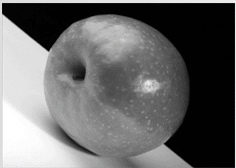
4. Once you've done that, go to your layer box. Now you can change the opacity of your desaturated layer, depending on how desaturated you want it.
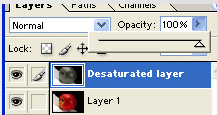
5. You are done now with this simple tutorial on desaturating and image.