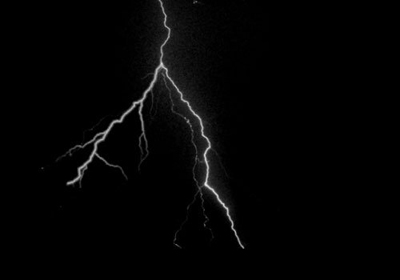
1. Create a new document or open an image.
2. Create a new layer and use a lightning brush to create a nice lightning. I got my brushes from http://rapidshare.com/files/19376076/SS-lightning.abr
3. OK, now export the document to ImageReady. Click the icon on the bottom of the tool window.
4. Open the Animation Window (Window >> Animation) and press on Duplicate Current Frame and create 4 frames.
5. In the first frame, make the first layer (the one with the lightning) invisible, by clicking on the eye icon in front of the layer. Do the same for the 3rd layer.
6. Ok, now select the first frame, hold Ctrl key and select the second one also. You now must have both frames selected. Click on the tween button, enter 7 frames and hit ok.
7. Now select the third and the fourth frame and add another tween, only this time put 2 or 3 frames. And that's it.

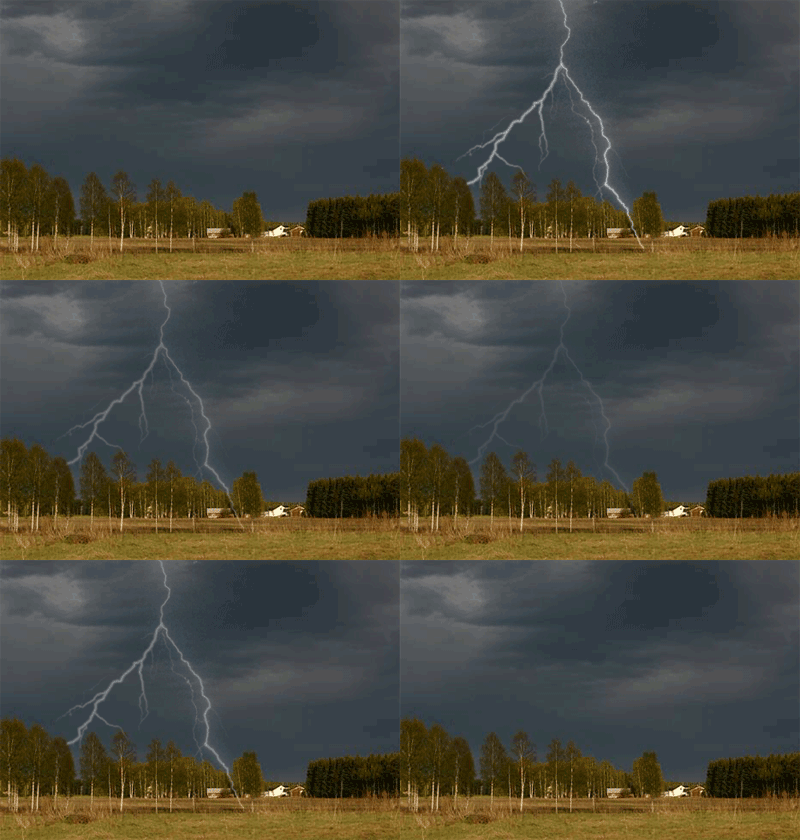
8. If you use an image, you can make something like this. Pretty spectacular, huh? Enjoy!