


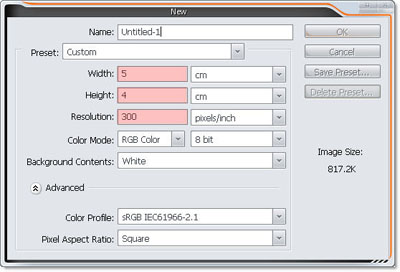
1. Create new document, size 5 x 4 cm,300 dpi
2. Create new render, we I'll use Cloud
Go to Filter >> Render >> Cloud
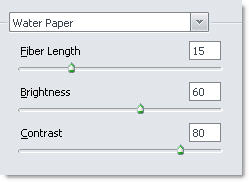
3. Next, Filter >> Sketch >> Water Paper and set parameter as I did
Go to Image >> Adjustment >> Brightness/Contract and raise Contract number
We have
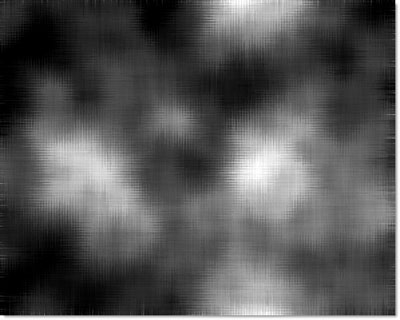
4. Make some color there
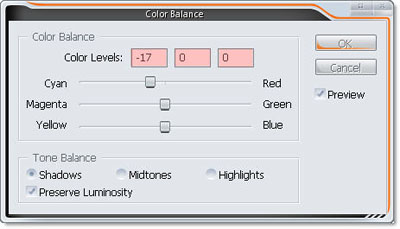
Go to Image >> New adjustment layer.. >> Color Balance and set parameter for Shadows, Midtones, and Highlights area and move this adjustment layer to the TOP
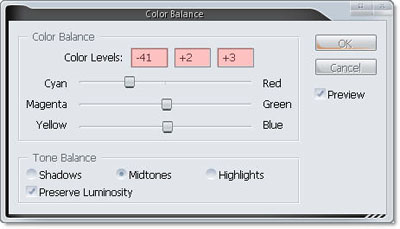
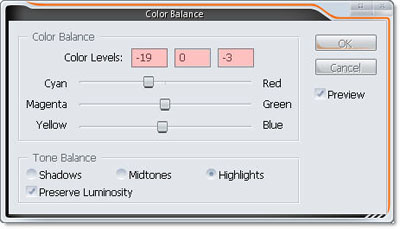
Wow, cool color :X
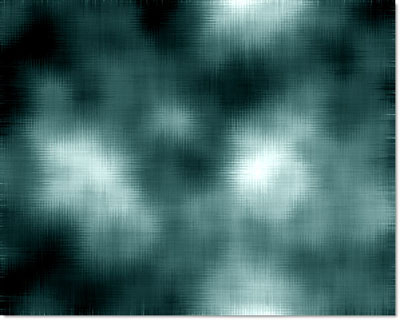
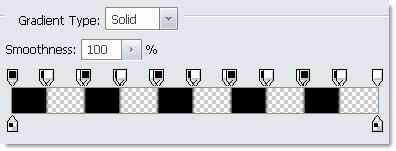
5. Choose this gradient
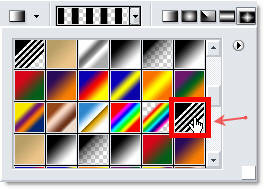
With Diamond fill mode

Preview in Gradient Editor windows
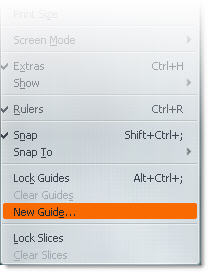
6. Make new guide, View >> New Guide..
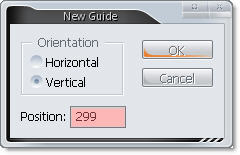
Set 299 px, because 5 cm ~ 600 px, this guide will cross the center of page
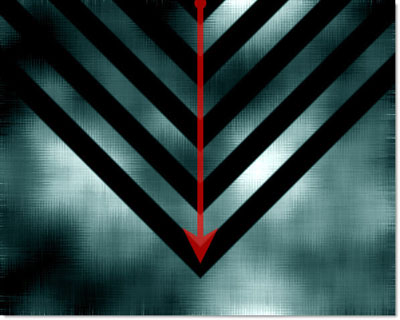
7. Create new layer and Fill this gradient by the direction
8. Now, add some Layer Style for that
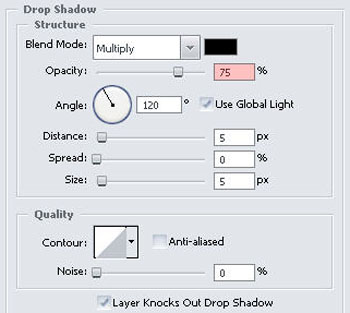
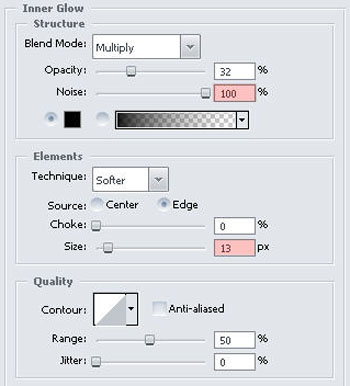
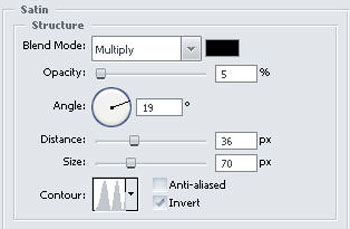
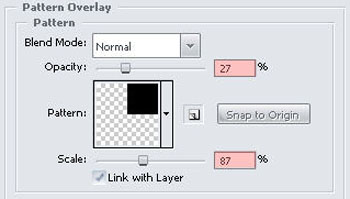
and set Blending mode = " Soft Light " for this layer
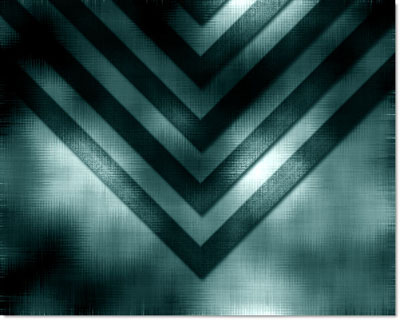
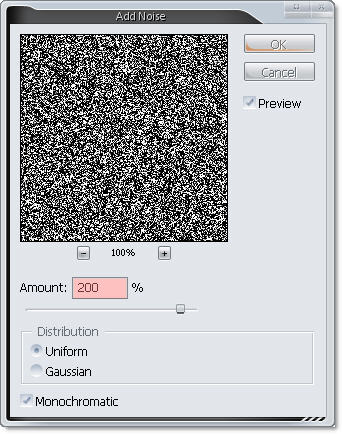
9. Now, make new layer, and go to Filter >> Noise >> Add noise..
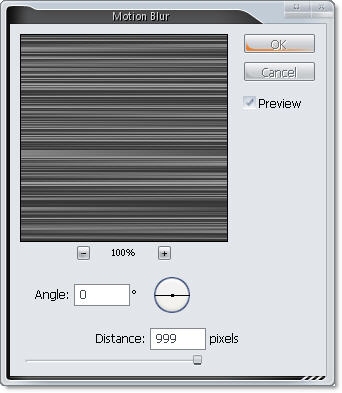
Then Motion Blur ( Filter >> Blur >> Motion Blur )
Set Blending Mode = " Color Dodge " for this layer
.jpg)
Done !!! You can write some text and use it to sign :)
