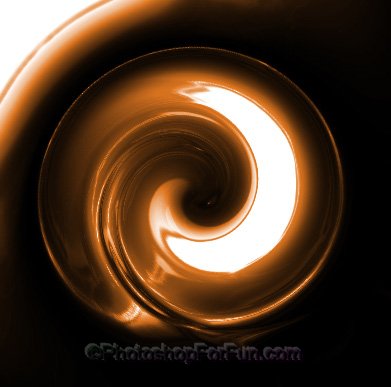
Start by apply a white to black to white to black gradient in radial mode.
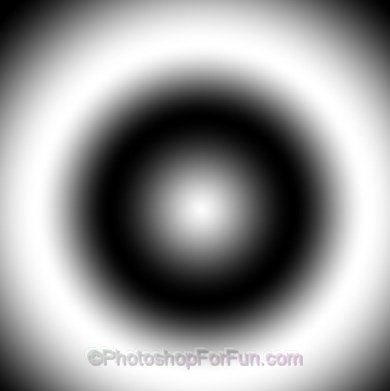
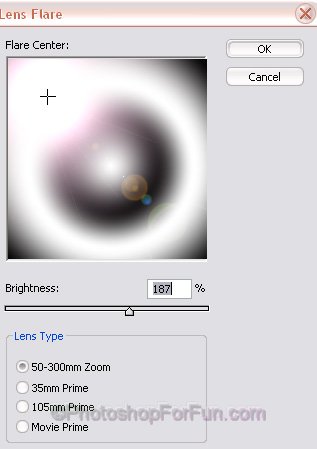
Duplicate the layer. From filter menu select "Render>>Lens Flare ". Apply settings as shown.
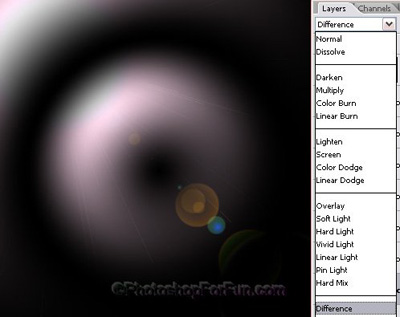
Change the layer mode to "Difference" from the layer palette.
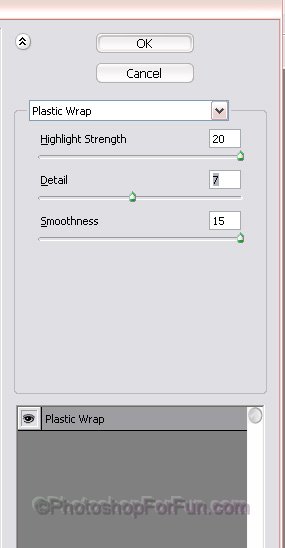
Select and merge both the layers. Duplicate the layer. From filter menu select "Distort>>Plastic Wrap ". Apply settings as shown.
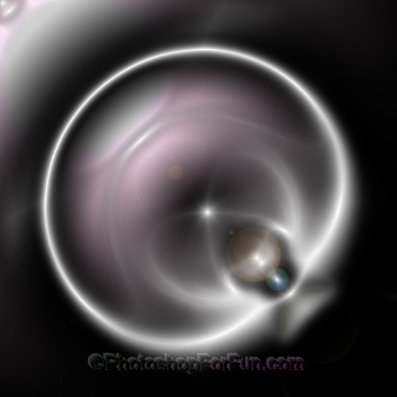
Change the layer mode to "Color Dodge " from the layer palette.
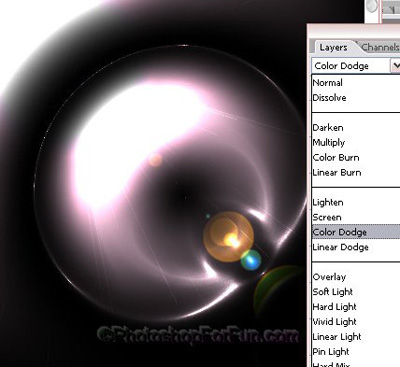
Duplicate the layer again. Reduce the opacity to 30%.

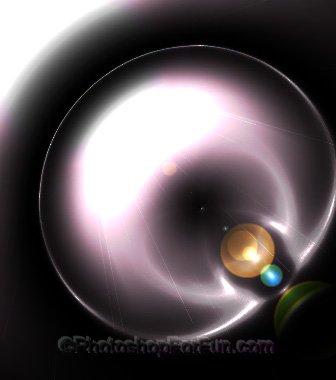
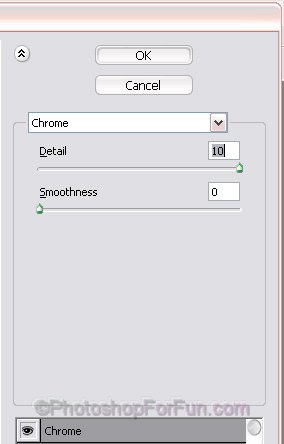
Select and merge all the layers. Duplicate the layer. From filter menu select "Distort>>Chrome". Apply settings as shown.
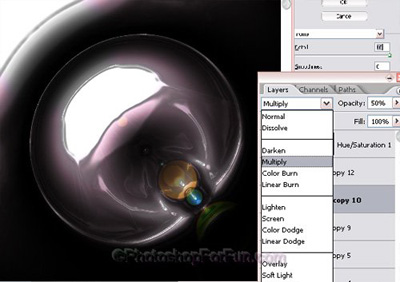
Change the layer mode to "Multiply" from the layer palette.
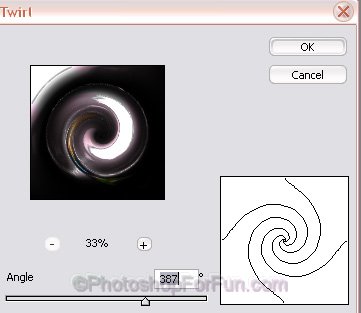
Select and merge all the layers. From filter menu select "Distort>>Twirl". Apply settings as shown.
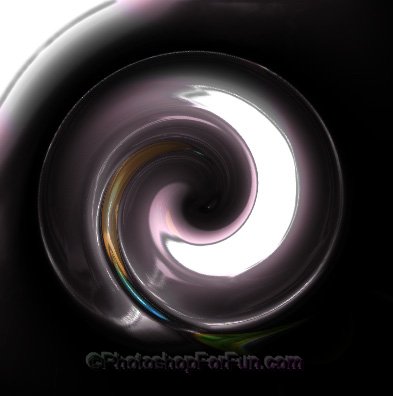
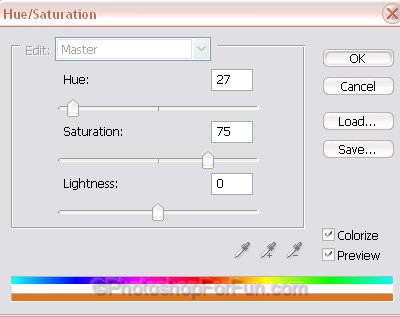
Press Ctrl+U to open hue/saturation window. Apply settings as shown.