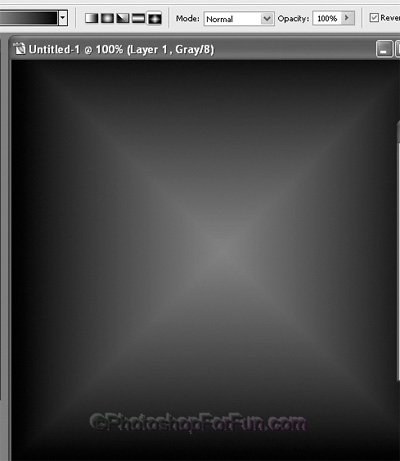
Start by applying a gradient to background in diamond mode.
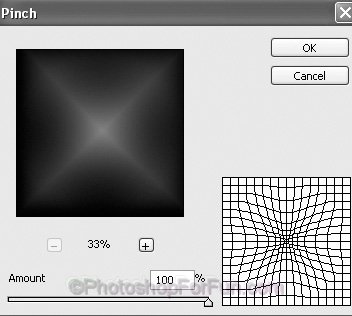
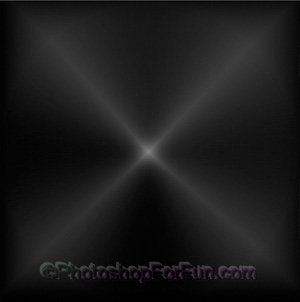
Duplicate the layer. From filter menu select "Distort>>Pinch". Apply settings as shown.
Similarly create more circles.
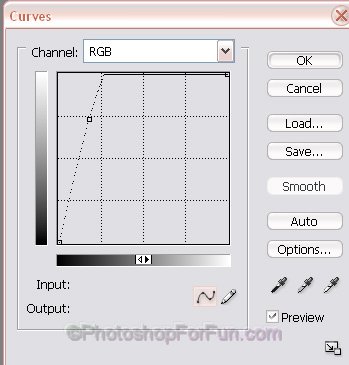
From layer menu select new adjustment layers>> curves. Apply settings as shown.
Double click the layer to open layer style window. Apply settings as shown.
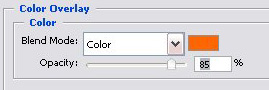
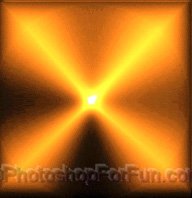
Open animation window. For the first frame select the layer as shown. Double click and adjust the color overlay settings as shown.
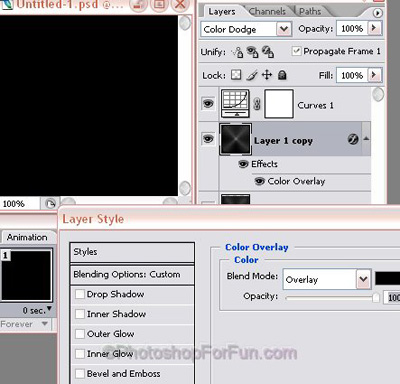
Duplicate frame. Change the color overlay setting to previous color.
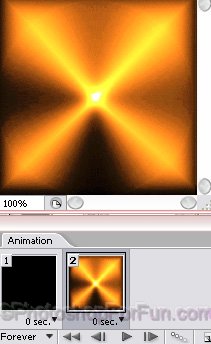
Click tween button from animation window. Apply settings as shown.
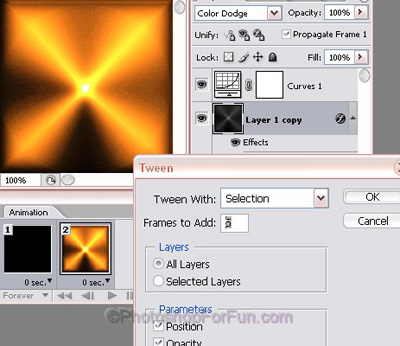
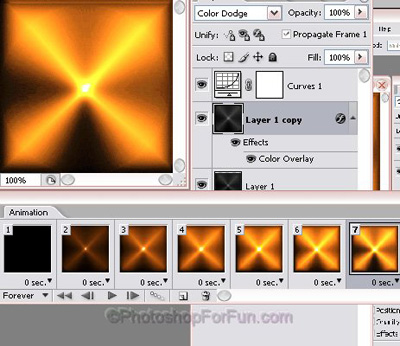
Duplicate the last frame. Double click on the layer and change the color as shown.
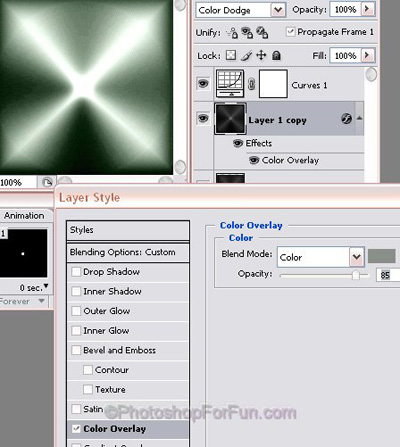
Duplicate both last frame several times.

Now duplicate the first frame. Move it to the end. Tween again to create a smooth blend of colors.
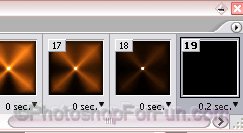
Press Ctrl+Alt+Shift+S to save an optimized animated GIF.