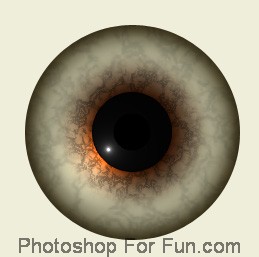
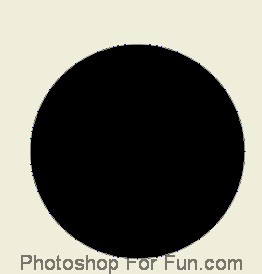
Create a circle using elliptical shape tool.
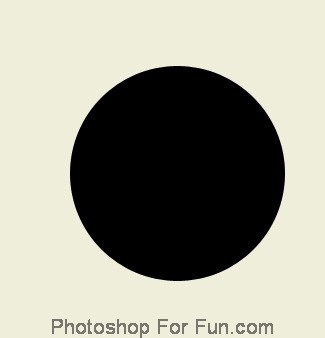
Double click the layer to open layer style window. Apply settings as shown.
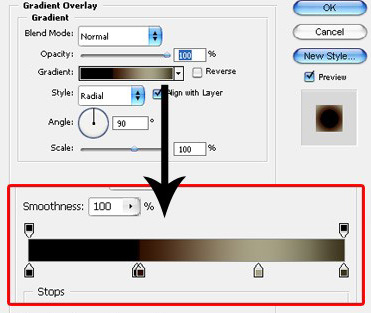
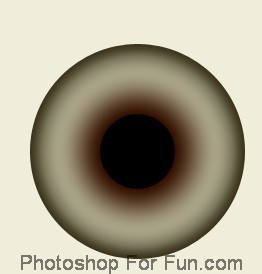
Duplicate the layer and remove all the layer styles.
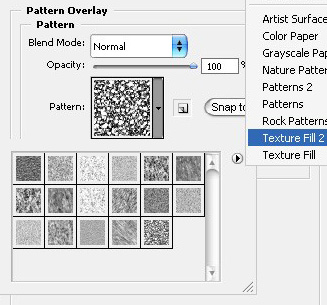
Double click the layer to open layer style window. Apply settings as shown.
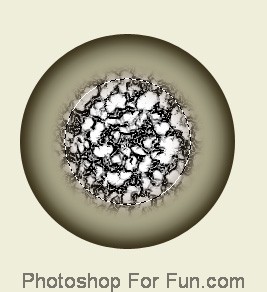
From layer menu select layer Style>>Create Layers. Select and merge all the resulting layers.
Create a circular selection using elliptical marquee tool.
Press Shift+Ctrl+D to feather the selection. Press Shift+Ctrl+I to invert selection & press Delete.
Change the layer mode to "Overlay" and opacity to 40%.from the layer palette.
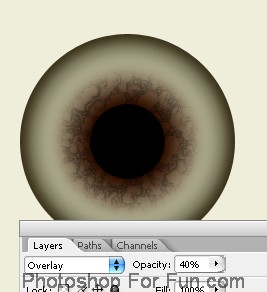
Similarly create another texture layer and reduce the opacity.
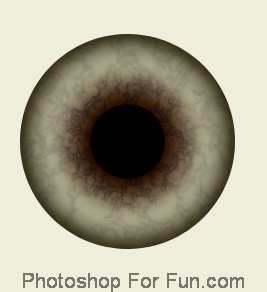
Create a circle using elliptical shape tool. Fill it with light black.
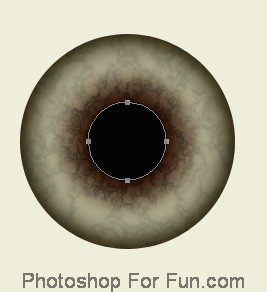
Create a small circle using elliptical shape tool. Fill it with Z Black color.
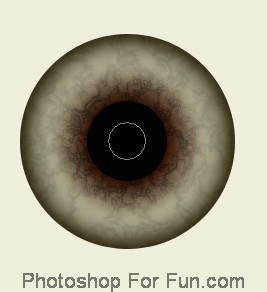
Create a circular selection using elliptical marquee tool.
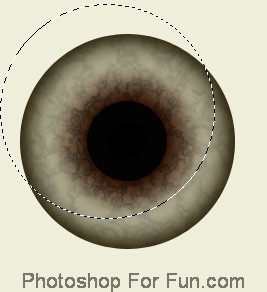
Create a new layer. Apply Black to white gradient in radial mode.
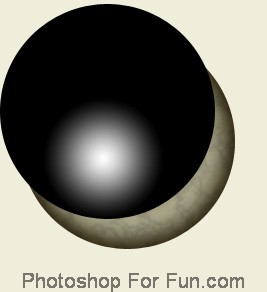
Change the layer mode to "Color Dodge" from the layer palette.