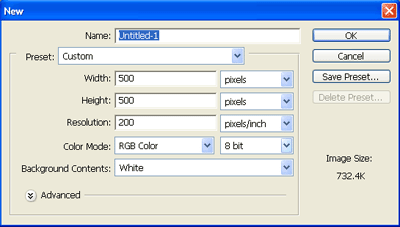
Step 1. Start out by creating a 500 x 500 pixels document.
Step 2. Set Foreground color to #80000C, the Background Color to #FFFFFF

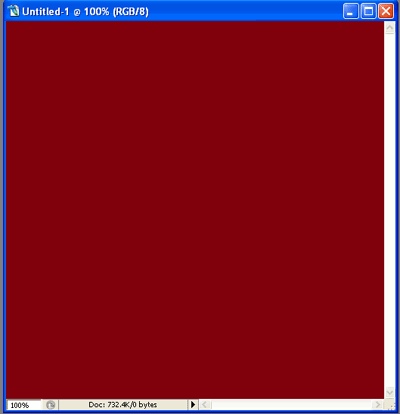
Step 3. Fill the document using the Paint Bucket Tool. Now you should have something like this:
Step 4. Create a new layer, hit 'D' on your keyboard.

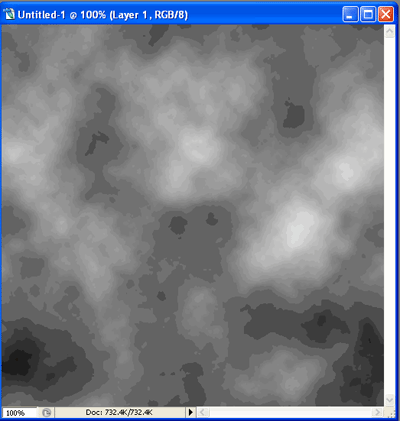
Step 5. Now go to Filter->Render->Clouds, Now you should have something like this:
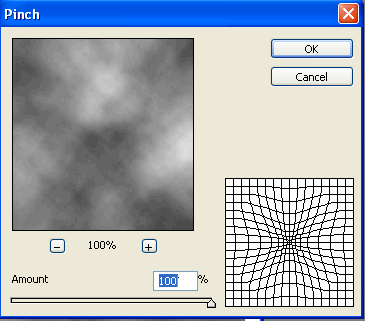
Step 6. Now go to Filter->Distort->Pinch. Use these settings:
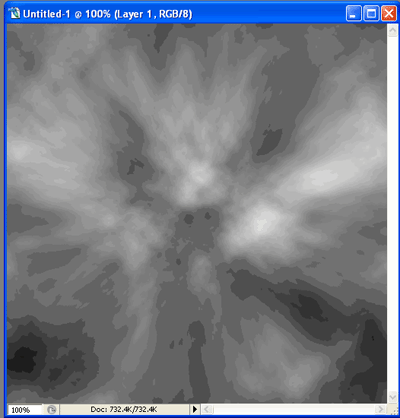
Now you should have something like this:
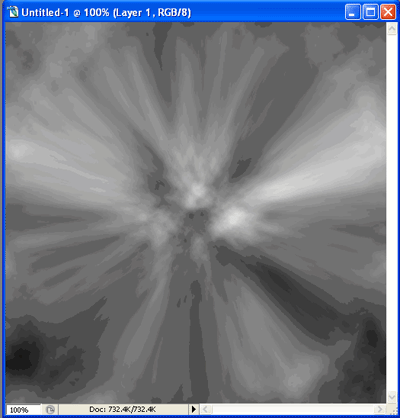
Step 7. Hit Ctrl+F, and now you should have something like this:
Step 8. Now go to Filter->Render->Lighting Effects
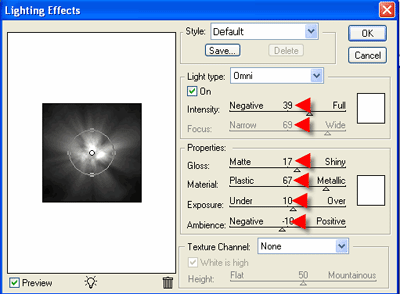
Now you should have something like this:
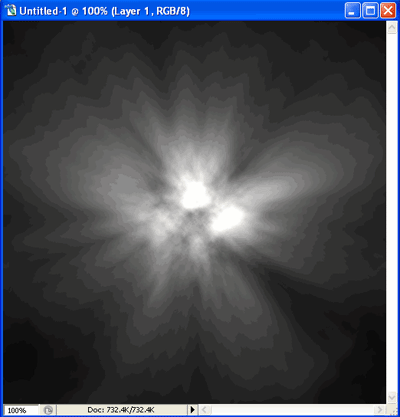
Step 9. Now go to Filter->Sketch->Chrome
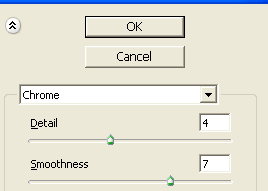
Click OK. Now you should have something like this:
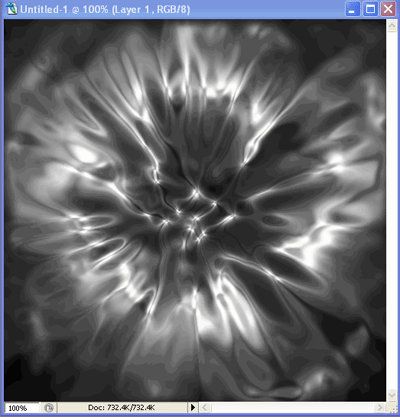
Step 10. Change the blending mode for the new layer to Linear Light
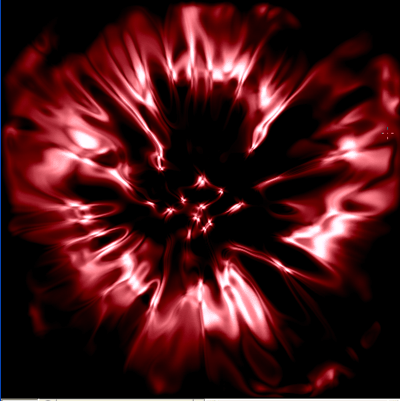
Final Result