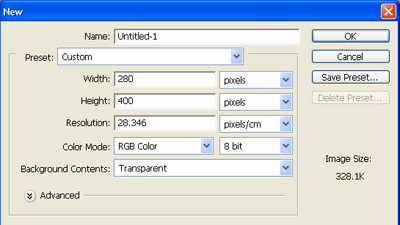
Create A new file Using These Settings
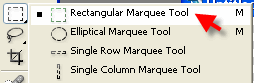
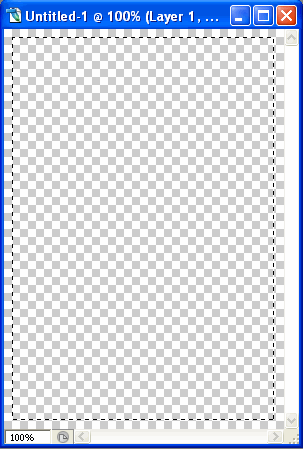
Then Create rectangle Using Rectangular Marquee Tool
Now you should have something like this:
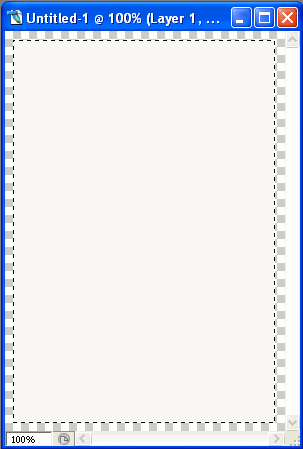
Fill The rectangle with white colour using paint bucket tool

Now you should have something like this:
Click Q to create mask around the layer
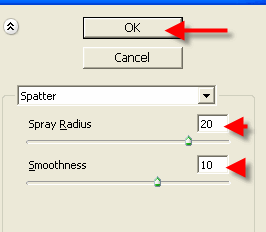
Then Go to Filter -> Brush Strokes -> Spatter
Set the Radius to 20
Smoothness to 10
Click ok
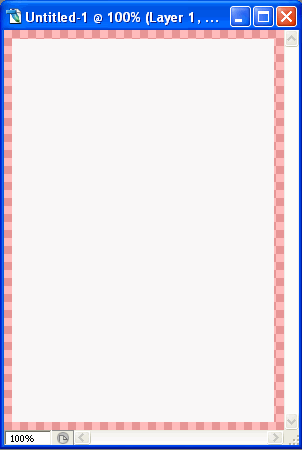
Now you should have something like this:
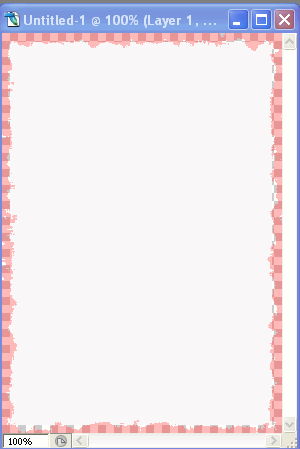
Then click Q to remove the mask from the layer
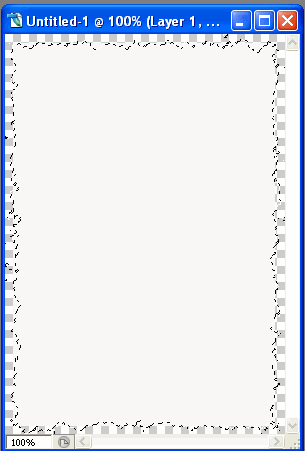
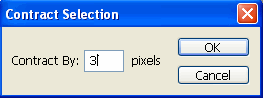
Then Go To Select->Modify->Contract
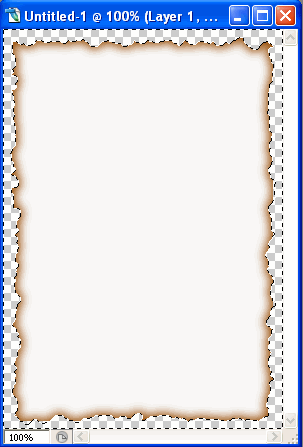
Now you should have something like this:
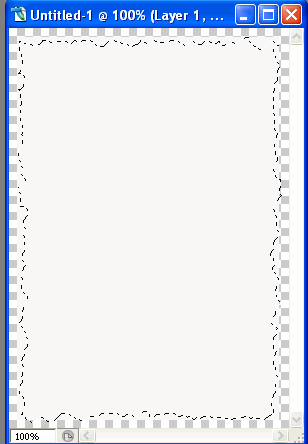
Then go to Select->Inverse ( Shift+Ctrl+I)
Then click delete button from the keyboard
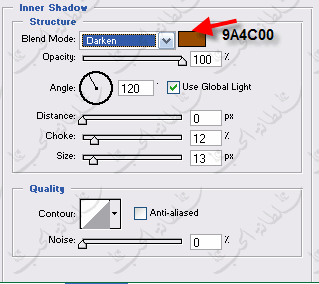
Okay so now go to blending options and apply these settings in the Inner Shadow area: