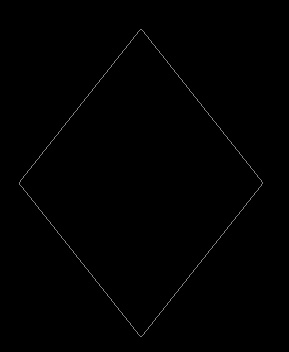
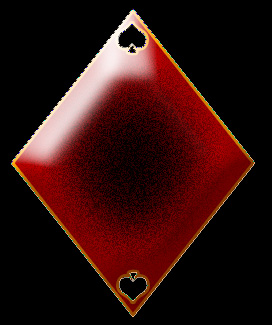
Start by creating a diamond shape using custom shape tool.
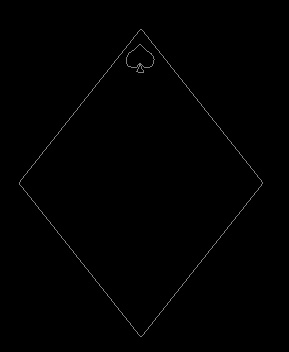
Enable "subtract from shape area" at the top bar. Create "Spade" shape using custom shape tool.
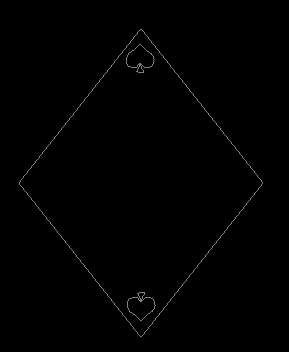
Duplicate the path, flip vertical and place it on the other side.
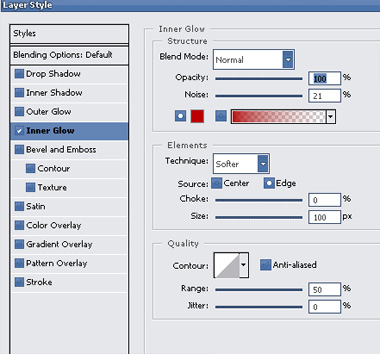
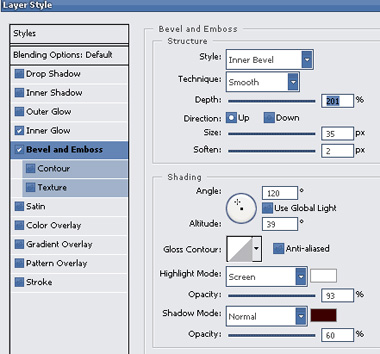
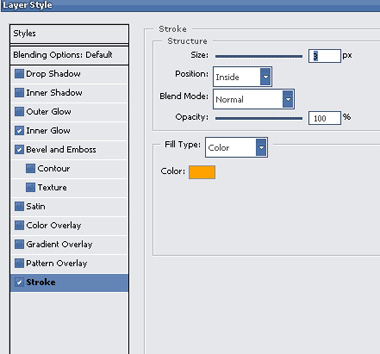
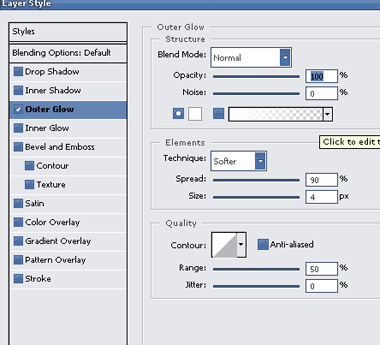
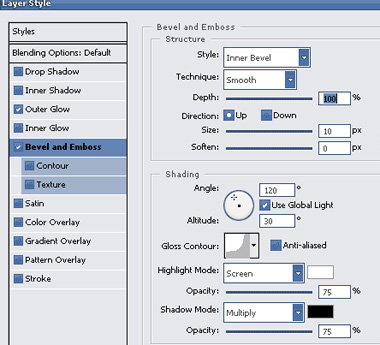
Double click the layer to open layer style window. Apply settings as shown.
Create a circle using elliptical shape tool.
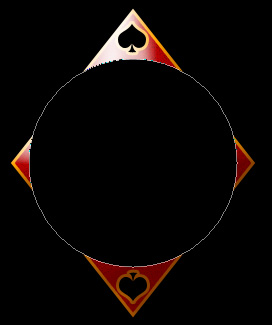
Apply same layer style and change the color. Enable "subtract from shape area" at the top bar. Create "Club" shape using custom shape tool.
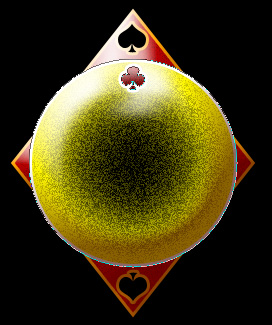
Select the club path using path selection tool. Press Ctrl+J and Ctrl+T. Rotate a few pixels right. Now keep pressing Ctrl+J and Ctrl+Shift+T several times to create the design as shown.
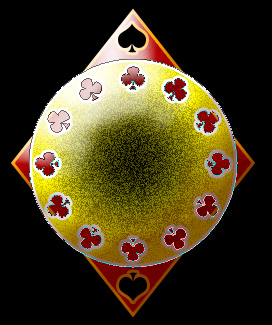
Create a rounded rectangle for the card using rounded rectangle shape tool. Apply some stroke layer style. Type "A" using a nice font. Place it on the top left of the card as shown.
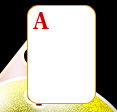
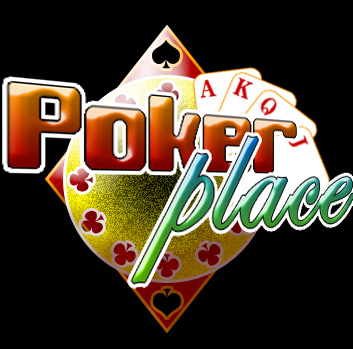
Similarly create more cards. Rotate and place as shown in the image below.
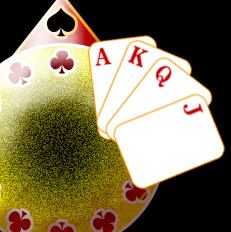
Type site name using a bold font.
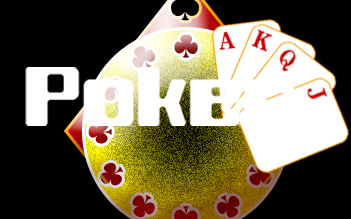
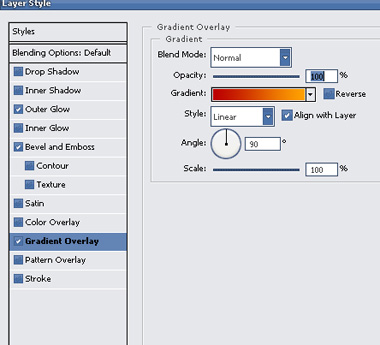
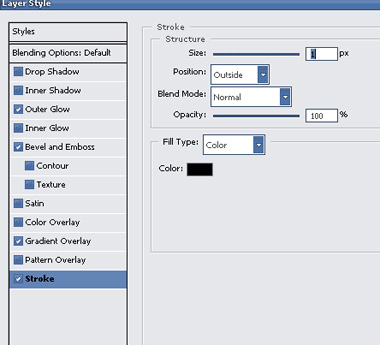
Double click the layer to open layer style window. Apply settings as shown.


Select and merge both the text layers. Press Ctrl+T. Right Click and select perspective. Adjust the nodes to get the shape as shown.