

Hello everyone, This is my 1st ever tutorial for PS (Photoshop). Wish to share with you. If you are familiar with PS working tools and you may found that there is some default custom shape inside. However, sometimes the shape may not suite to your design. So, here is the way for you to create your own custom shape or modify the existed shapes. I usually do this for my logo design and trademark design as it is scalable without losing it's quality. Let's start then…
1. Create a new document with any size you like, I use 500 x 500 px for this. Select the pen tool

and start to draw the shape ( you can convert the point by holding ALT and click on the vector point ), you can draw what I put here:
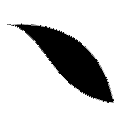
2. Checked the add on shape area

this is for us to add in any others shapes we wish to. And don't forget to make sure that the vector mask

is selected as shown so that you manage to add other shape as you like.
3. Continue to draw out the desired shape. Finally i get this:
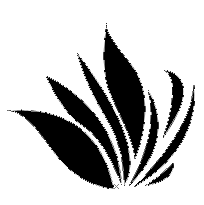
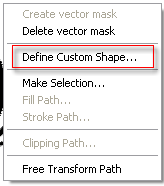
4. We are nearly there. right click on the shape with pen tool selected and choose Define Custom Shape and rename it whatever you want
Now, you can use the shape whenever you want from the custom shape tools.
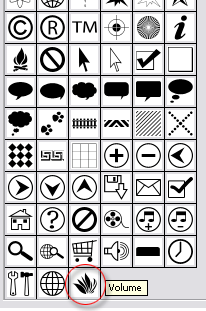

By creating this shape, you can now use it in any sizes without any looses of quality. Hope this help, Thanks.
